
Billing & Plans
Manage plan limits, storage usage, and account-level billing context.
As an admin you can run your whole organization on one plan and one bill. The Admin → Billing hub is where you subscribe to the org-wide Business plan, see who's covered, add or remove seats, and manage invoices — so nobody on your team has to sort out billing on their own.
The Admin Billing hub
In the web app at app.tenali.ai, open Admin → Billing in the sidebar. You'll need an Admin role to see it. The hub gives you everything for the organization's plan in one place:
- Plan summary — your current plan, status, seat count, and next billing date.
- Subscribe / Cancel — start or cancel the org-wide Business subscription that covers your whole team.
- Billing portal — a link to the secure billing portal, where you update your payment method and download invoices.
- Member list — everyone covered by the plan, each with a Remove action.
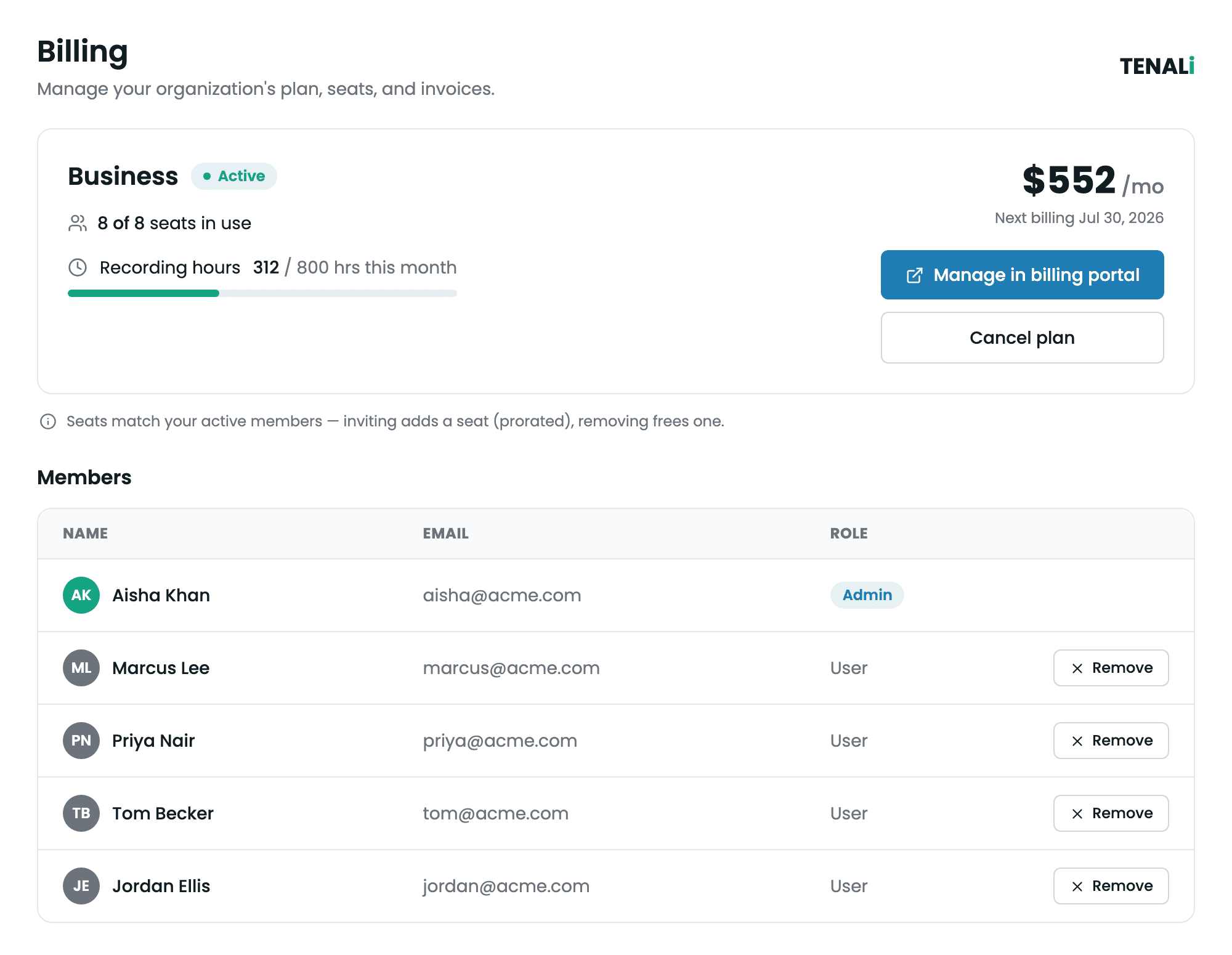
Admin → Billing seat hub
The Admin Billing page showing the plan summary and seat count, the Subscribe/Cancel and billing-portal controls, and the member list with a Remove action on each row.
Seats follow your member count
You never manage seats by hand — your seat count automatically matches the people on your plan: active members plus any pending invitations. Add a person and a seat is added; remove a person and that seat is freed.
- Inviting a member adds a seat. The seat is billed on a prorated basis, and the invite dialog shows you the added per-seat cost before you send it — so there are no surprises.
- Removing a member frees a seat. Remove someone from the member list (or from Team Management) and your seat count — and your bill — drops accordingly.
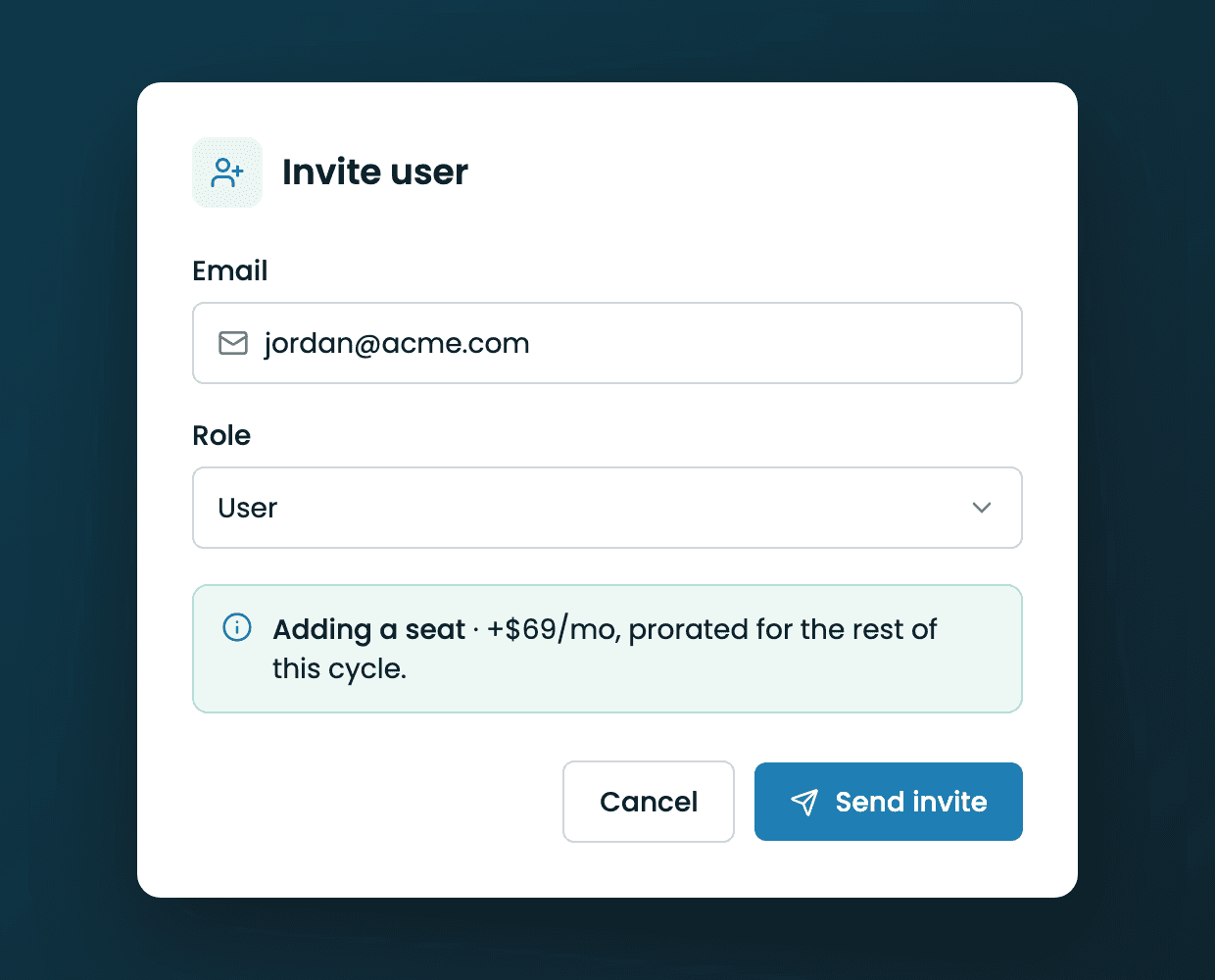
Invite dialog with seat-cost delta
The Invite User dialog showing the added per-seat cost for the new seat, so the admin sees exactly what inviting this person will add to the bill.
Recording hours are pooled
On the org-wide plan, recording hours are pooled across your whole organization. Your total limit is the per-seat allotment multiplied by the number of seats — so a heavy-usage rep can draw on hours a lighter user hasn't touched, all under the same cap. Adding a seat raises the pool; removing one lowers it.
Members covered by the org plan
When someone is covered by the organization's plan, they don't see their own Subscribe or checkout controls. Instead, their Billing tab shows a read-only "managed by <admin>" card naming the admin who owns the plan. This keeps everyone on one bill and makes sure nobody is double-billed for a plan they're already covered by.
Keep spend predictable
The plan takes care of the mechanics; a light monthly rhythm keeps costs in line with actual usage.
- Confirm the member list matches who should have access — remove anyone who has left.
- Watch the pooled recording-hour and storage usage, and forecast whether you're trending toward the limit.
- Prune stale or duplicated organization sources so storage growth doesn't push an early upgrade. See Organization Sources & Question Analytics.
- Keep your payment method and finance contact current in the billing portal ahead of renewal.
If the organization plan lapses
An expired org-wide plan affects every member at once — each person's AI chat, meeting assistant, and recording show a renew prompt, and automatic background imports (Fireflies, Slack) pause for the whole team. Members can't fix this themselves: they see a message directing them to their workspace admin, because renewal happens here in Admin → Billing.
Nothing is deleted and no integrations are disconnected while the plan is lapsed — everyone's meetings, summaries, and sources stay viewable. When you renew, access returns for the whole organization and background imports catch up on their own (Slack catch-up is limited by your Slack workspace's own message-history retention — messages already expired there can't be recovered). For the full breakdown of what pauses and what keeps working, see Billing & Plan Management.
When to contact support
Reach out to the Tenali team early — well before an end-of-quarter crunch — if you hit any of these:
- Repeated plan-limit blocks during active sales cycles.
- A billing-owner change close to your renewal date.
- A need for contract-level terms, custom limits, or a downgrade that checkout doesn't cover.
Next Guides
- Managing Your Team — invite, remove, and re-role members
- Roles & Permissions — who can manage billing
- Billing & Plan Management — the individual Billing tab
- Admin Overview — the full set of organization controls
Was this page helpful?