
Billing & Plan Management
See your plan, recording hours, and storage at a glance — and upgrade when you're ready.
The Billing tab tells you exactly where you stand: which plan you're on, how many recording hours and how much storage you've used, and when your trial or subscription renews. You'll find it in Manage Profile → Billing in the web app.
See your plan at a glance
The top of the Billing tab shows three cards.
- Plan — your current plan. There are two paid tiers, Professional and Business; before you subscribe you're on a Free Trial (a 14-day trial of Professional, not a separate tier). On a paid plan an Active badge appears; trials show "X days remaining" until expiry; paid plans show "Next billing: date".
- Recording Hours — hours used this month against your plan limit, with a usage bar. Plans with no cap show Unlimited.
- Storage Used — how much of your storage quota your sources are using, with a usage bar. Plans with no storage cap show Unlimited.

Billing tab quota cards
The Plan, Recording Hours, and Storage Used cards at the top of the Billing tab.
Usage bar colors
Both the Recording Hours and Storage Used bars are color-coded so you can spot a problem before it bites:
- Green — under 50% used. You're in good shape.
- Yellow — 50% or more used. Worth keeping an eye on.
- Red — 80% or more used. You're close to the limit.
When storage hits 80%, Tenali shows a banner warning that you're approaching your limit. When recording hours hit 80%, a banner reminds you how many of your monthly hours are left.
Trial and subscription status
The Plan card always reflects your real-time status:
- On a trial — you'll see the days remaining. When three or fewer days are left, a banner warns that your trial is ending soon, with a Subscribe button.
- Trial expired — a red banner reads "Your trial has expired. Subscribe to continue using all features."
- Active subscription — the Active badge shows and the card displays your next billing date.
- Lapsed subscription — the card reads "Subscription expired" and you'll see checkout buttons to renew.
Upgrade or change your plan
Below the cards, the plan section is headed "Choose your plan" (or "Your current plan" once you're paid). Each plan card lists its price, monthly limits, and included features:
- Professional — built for individual reps.
- Business — built for teams that need more headroom and usage controls.
Each card shows that plan's current price, monthly recording-hour limit, and storage so you can compare side by side — see the card (or the pricing page) for exact figures.
Your current plan is marked Current Plan (its button is disabled). The other tier shows a labeled action with its price: from Professional the Business card reads Upgrade — $X/mo, and from Business the Professional card reads Downgrade — $X/mo. On a standard paid plan, both upgrades and downgrades are self-serve — you no longer need to contact us to move down a tier. (Complimentary Extended Trial workspaces are the exception — see below.)
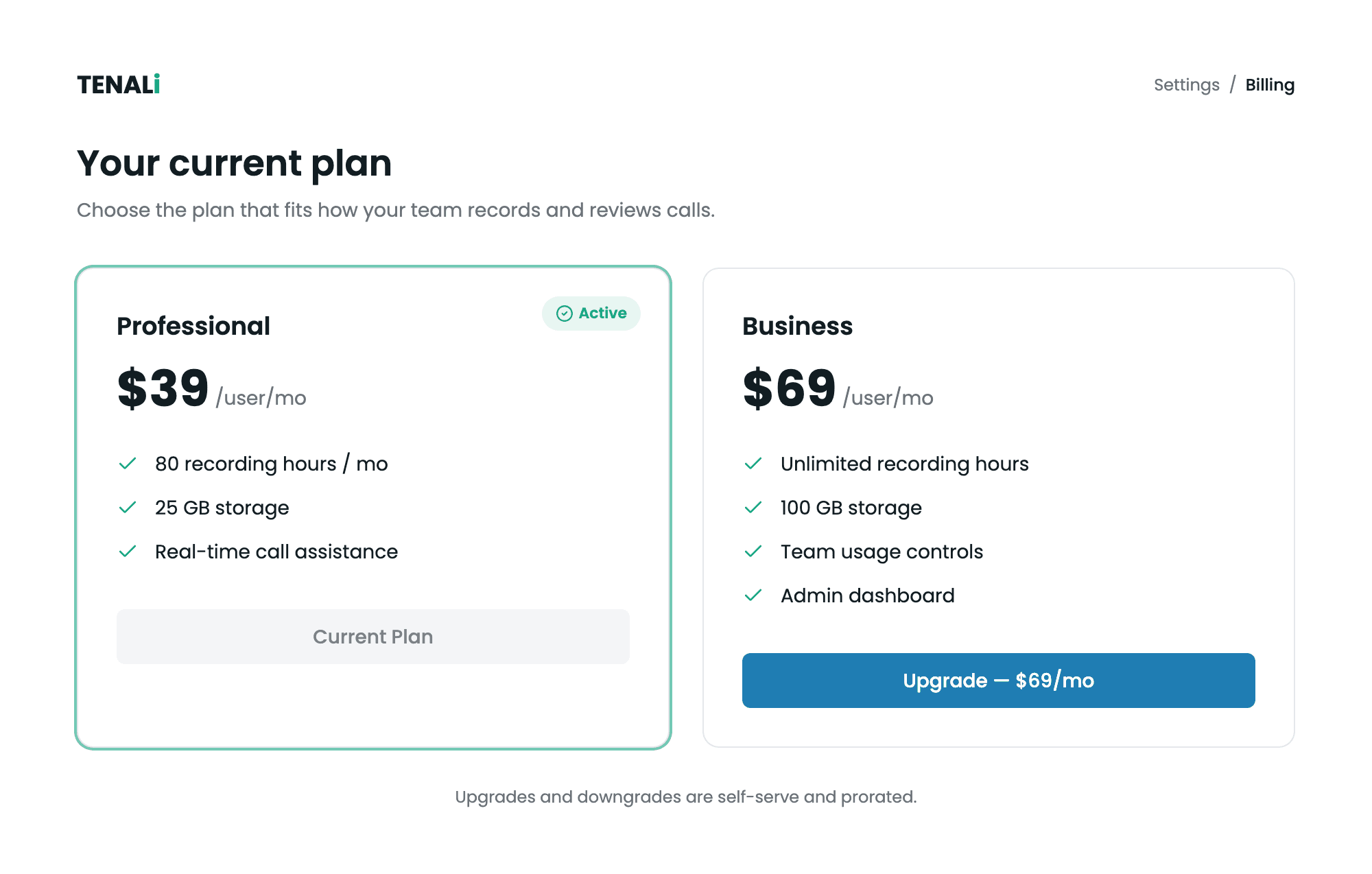
Upgrade and downgrade plan cards
The Professional and Business plan cards, one marked Current Plan and the other showing an 'Upgrade — $X/mo' or 'Downgrade — $X/mo' button.
- 1
Open the Billing tab
Go to Manage Profile → Billing in the web app.
- 2
Pick a plan
On a standard trial, each plan card shows a Start Plan button with its price. Once you're subscribed, the other tier shows Upgrade — $X/mo or Downgrade — $X/mo.
- 3
Confirm
A first-time subscription takes you to secure checkout to enter payment details — your plan activates and the Active badge appears as soon as payment goes through. An upgrade or downgrade on an existing subscription applies in place and is prorated: you're charged or credited the difference automatically, with no second checkout to complete.
Extended Trial · Complimentary access
Some workspaces show Extended Trial · Complimentary access on the Plan card instead of a paid plan. On these workspaces the plan-change and upgrade CTAs route to Contact Us rather than self-serve checkout — the Contact Us button opens a scheduling link to talk with the Tenali team about the right plan for you.
Pause, cancel, or resume your subscription
On a paid plan, the Billing tab includes a Manage subscription area where you can pause, cancel, or resume — all self-serve, no need to contact us. Whichever you choose, your recordings, sources, and settings stay put.
- Cancel ends your subscription at the end of the current paid period. You keep full access until then, and you can undo it with Keep my plan.
- Pause stops billing; your access lapses when the paid period ends, and Resume brings it back whenever you're ready.
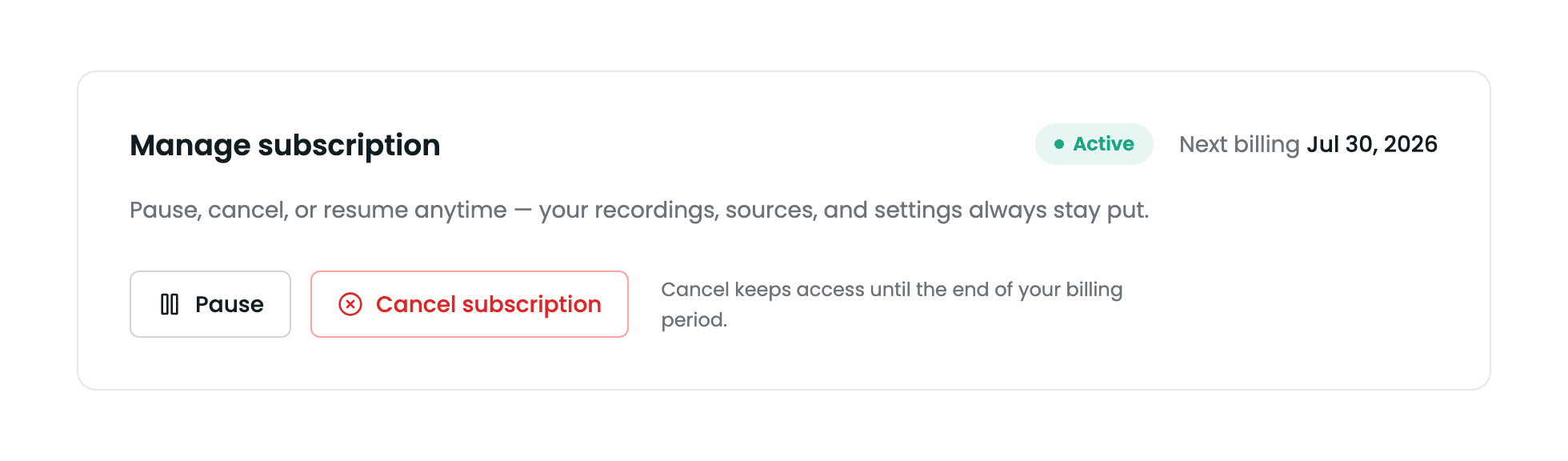
Manage subscription card
The Manage subscription area in Billing, showing the Pause, Cancel, Keep my plan, and Resume controls.
Cancel your plan
- 1
Open Manage subscription
In Manage Profile → Billing, find the Manage subscription area and choose Cancel.
- 2
Confirm the cancellation
A confirmation dialog explains that you'll keep access until the end of your current paid period and reassures you that your data stays. Confirm to schedule the cancellation — it takes effect when the period ends.
- 3
Changed your mind?
While a cancellation is pending, the area shows Keep my plan. Select it any time before the period ends to reverse the cancellation and stay on your plan — nothing changes.
Pause and resume
- 1
Pause billing
In Manage subscription, choose Pause. A confirmation dialog explains that billing stops and your access lapses at the end of the current paid period, and reassures you that your data stays.
- 2
Resume when you're ready
A paused or lapsed subscription shows a Resume button. Select it to restart billing and immediately restore access — your recordings and settings are exactly where you left them.
What stops — and what keeps working — when your plan lapses
Whether a trial ends, a cancellation or pause reaches the end of its paid period, or a renewal payment doesn't go through, the same rules apply:
What keeps working
- All your existing data stays accessible. Past meetings, summaries, transcripts, and uploaded sources remain viewable. A lapsed plan never deletes anything.
- Your integrations stay connected. Nothing is disconnected; your settings stay put.
What pauses
- Live features prompt you to renew. Asking the AI chat and starting a recording each show a clear renew or resume prompt instead of running — with distinct messaging for an expired trial, an expired plan, and a paused subscription.
- Automatic background imports pause. Automatic Fireflies imports and Slack channel updates stop while the plan is lapsed. This is silent — integrations still show as connected; new content simply stops arriving.
When you come back
Resubscribe or resume and everything restarts on its own: background imports pick up where they left off and catch up on what was missed — no reconnecting, no manual re-import. (Slack catch-up is subject to your Slack workspace's own message-history retention.)
Next Guides
Was this page helpful?