
Connect Slack Channels
Pick a Slack channel as a Tenali source so your team's latest answers show up in chat and live on calls.
The freshest answers often live in Slack, not in a doc. Pick a channel as a source and Tenali ingests its content so it can answer from your team's running conversations — even during a live call.
Add a Channel as a Source
Once Slack is connected, you add channels from your Sources list.
- 1
Open the Slack source dialog
From your Sources, start a new Slack source. The "Upload Source from Slack" dialog opens.
- 2
Select a channel
Open the "Select Channel" dropdown and choose the channel you want. The list shows your channels by name, like
#sales-enablementor#product-updates— both public channels and private channels you belong to. - 3
Upload
Click "Upload". Tenali ingests the channel and confirms with "Channel imported successfully as source". It now appears in your Sources list.
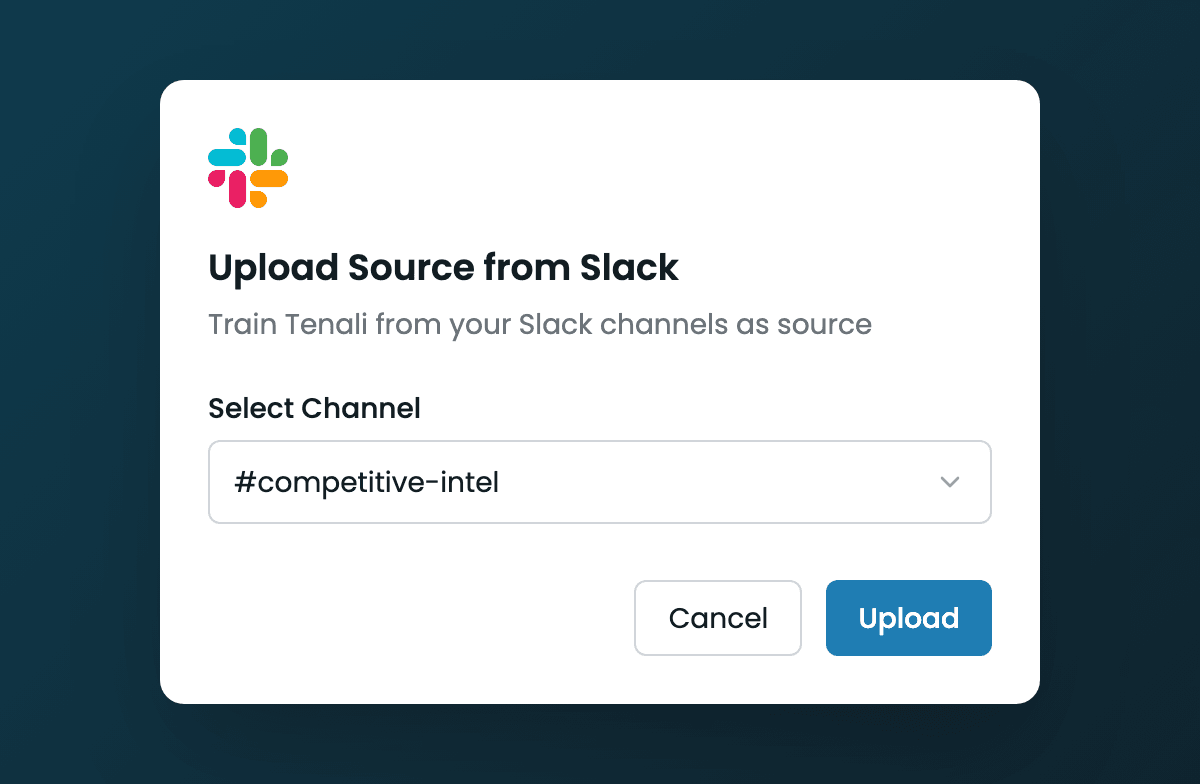
Upload Source from Slack dialog
The dialog with the Select Channel dropdown open, showing channels by name, and the Upload button.
Public and Private Channels
Tenali lists your workspace's public channels, plus the private and Slack Connect channels you're a member of — provided your Slack connection holds the permissions to read them. If it was made before the permission set widened, you'll see public channels only until you reconnect. It reads through your own Slack access, so it can never reach a private channel you couldn't open yourself.
Which Channels to Pick
Choose channels where the answers are stable and worth surfacing on a call:
- Product announcements and release notes
- Sales enablement and pricing updates
- Support escalation resolutions
- Competitive intelligence
Keeping a Channel Current
You don't need to re-import a channel to stay current. After the initial import, Tenali picks up new messages posted to the channel automatically — typically they're answerable within the same day. The initial import covers the channel's existing history, including threaded replies, with names resolved so answers read naturally.
Three things to know:
- Replies inside an existing thread aren't picked up by the automatic update — it follows the channel's main timeline. Use the source's Refresh action when a thread has had an important follow-up you need answerable.
- Edits and deletions made in Slack aren't picked up automatically either. Refresh re-imports the channel and reflects them.
- Answers cite the channel — source citations name the Slack channel the answer drew from.
You can remove a channel source any time from your Sources list.
Signal Filtering
Slack channels are mostly not answers. They're "thanks!", "+1", standup threads, deploy alerts, and lunch plans — and if all of that went into your knowledge base, it would drag down every answer that came out of it.
So Tenali reviews messages before indexing them and keeps the ones that carry real information: decisions, explanations, product and pricing details, customer context, resolutions. The rest is left out. You don't configure this and there's nothing to tune — it runs on every channel, on the initial import and on everything that arrives afterwards.
The review is bounded by volume: on a very large import, messages past a certain point are indexed without being reviewed rather than dropped unseen. So the filter reduces noise — it doesn't promise that every last message was assessed.
Two things follow from it:
- A busy channel doesn't mean a bloated knowledge base. The chatter is left out and the substantive messages are what get indexed, so your storage goes further.
- A chatty channel may import very little. If a channel is almost entirely quick reactions, there may be very little to keep.
Org-Wide Channels (Admins)
Workspace admins can add a Slack channel as an organization source, making its content answerable for everyone in the org — the same dialog, opened from the admin sources view, confirms with "Channel imported as an organization source." The admin adding the channel needs their own Slack connected. See Organization Sources & Question Analytics.
Organization sources matter for a second reason: they're the only thing Tenali can draw on when someone tags it in a Slack channel. If your team wants @Tenali to answer usefully in #sales-help, the material behind those answers has to be published org-wide. See Tenali in Slack.
Public channels can be shared org-wide; private and externally-shared ones can't.
Storage and Plan Notes
Imported Slack content counts toward your plan's storage allowance, alongside uploaded files — you can see usage on the Billing tab.
If Adding a Channel Fails
The dialog tells you exactly what's wrong:
- "You don't have access to this Slack channel. You may need to join it first." — join the channel in Slack, then try again. This usually means a private channel you're not a member of, or a channel your Slack workspace restricts.
- "Your Slack connection has expired. Please reconnect Slack in Settings." — disconnect and reconnect Slack on the Integrations page.
- Channel archived or no longer exists — pick an active channel; already-imported content from an archived channel stays answerable until you remove the source.
Next Guides
Was this page helpful?