
Import from Fireflies
Pull your past Fireflies meetings into Tenali so customer questions and answers are ready for your next call.
If you already capture calls in Fireflies, you don't have to start your Tenali knowledge base from scratch. Import those past meetings and Tenali learns the questions your customers actually ask — and the answers your team gave — so it can assist you live next time.
Fireflies works two ways in Tenali:
- Connect once, and new meetings flow in automatically. From the moment you connect, Tenali checks Fireflies for new meetings a few times a day and imports them on its own — no re-importing, no upkeep.
- Back-catalog is yours to choose. Meetings from before you connected aren't bulk-imported — you pick which past calls matter using the import dialog below.
Step 1: Connect Fireflies
Fireflies connects with an API key (not a login pop-up). Grab your key from fireflies.ai and paste it into Tenali on the Integrations page.
See Connect Fireflies for the exact steps to find your API key and connect.
Step 2: Import past meetings
New meetings import automatically once you're connected. For your existing Fireflies history, you choose which meetings to bring in — Tenali doesn't bulk-import your back catalog.
- 1
Open the import dialog
From the import flow, Tenali opens the "Import Meetings" dialog. It loads your Fireflies meetings in a table with Title, ID, and Date columns. Meetings you've already imported are filtered out, so you only see what's new.
- 2
Find the meetings you want
Use the "Search meetings..." box to filter by title, or page through your history with the next and previous arrows (meetings load 50 at a time).
- 3
Select and import
Tick the checkbox next to each meeting you want. The "Import" button activates once at least one meeting is selected. Click it to bring those meetings into Tenali, or "Close" to cancel without importing.
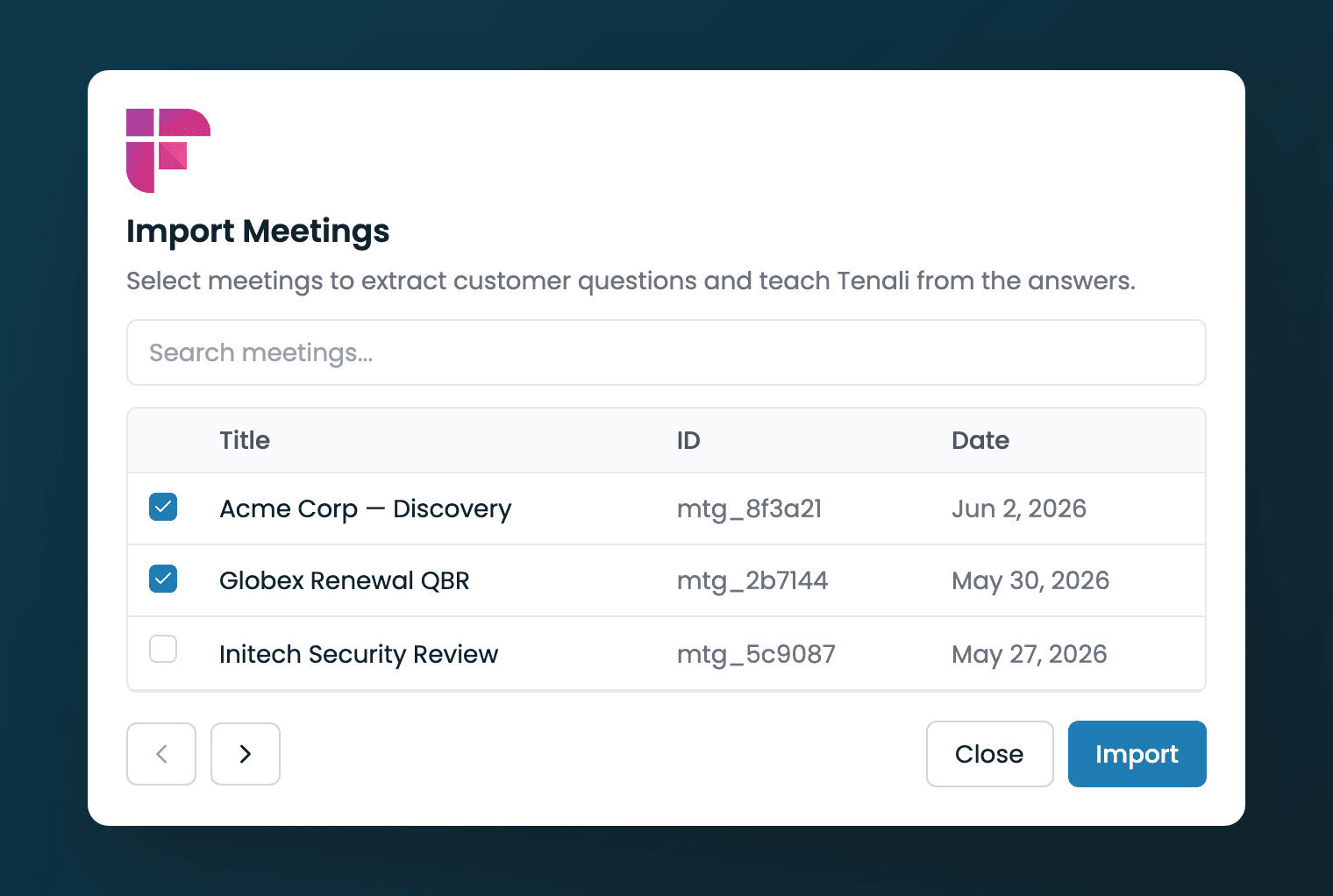
Import Meetings dialog
The Fireflies import table with Title, ID, and Date columns, a search box, and the Import button.
What happens to imported meetings
Tenali reads each imported transcript to extract the customer questions raised on the call and the answers given. Those surface in Admin → Question Intelligence, where you can review them, set the best answers as standard, and fill any gaps so Tenali answers the same question confidently on your next live call.
See Question Intelligence for how to review, answer, and promote what gets captured from your imports.
Next Guides
Connect Fireflies
Get your API key and connect Fireflies to Tenali.
Question Intelligence
Review, answer, and promote the questions captured from your meetings.
Import Gong Calls
Bring your Gong call history into Tenali the same way.
Managing Sources & Storage
See what you've imported and manage your storage.
Was this page helpful?
Connect Slack Channels
Pick a Slack channel as a Tenali source so your team's latest answers show up in chat and live on calls.
Import Gong Calls
Pull your existing Gong call recordings into Tenali so they become searchable and start teaching Tenali how to answer the questions your buyers actually ask.