
Question Intelligence
See the questions customers actually ask across your meetings, fill the answer gaps, and have Tenali deliver your approved answer the next time it comes up.
Every rep hears the same customer questions over and over — and answers them a little differently each time. Question Intelligence captures those questions automatically across all your meetings, groups the duplicates, and tracks how often each one comes up, so admins can fill the gaps once and have Tenali deliver the approved answer next time.
The payoff: consistent messaging across every rep, far fewer "let me get back to you" moments, faster ramp for new hires, and a knowledge base that grows on its own — every call quietly becomes reusable knowledge.
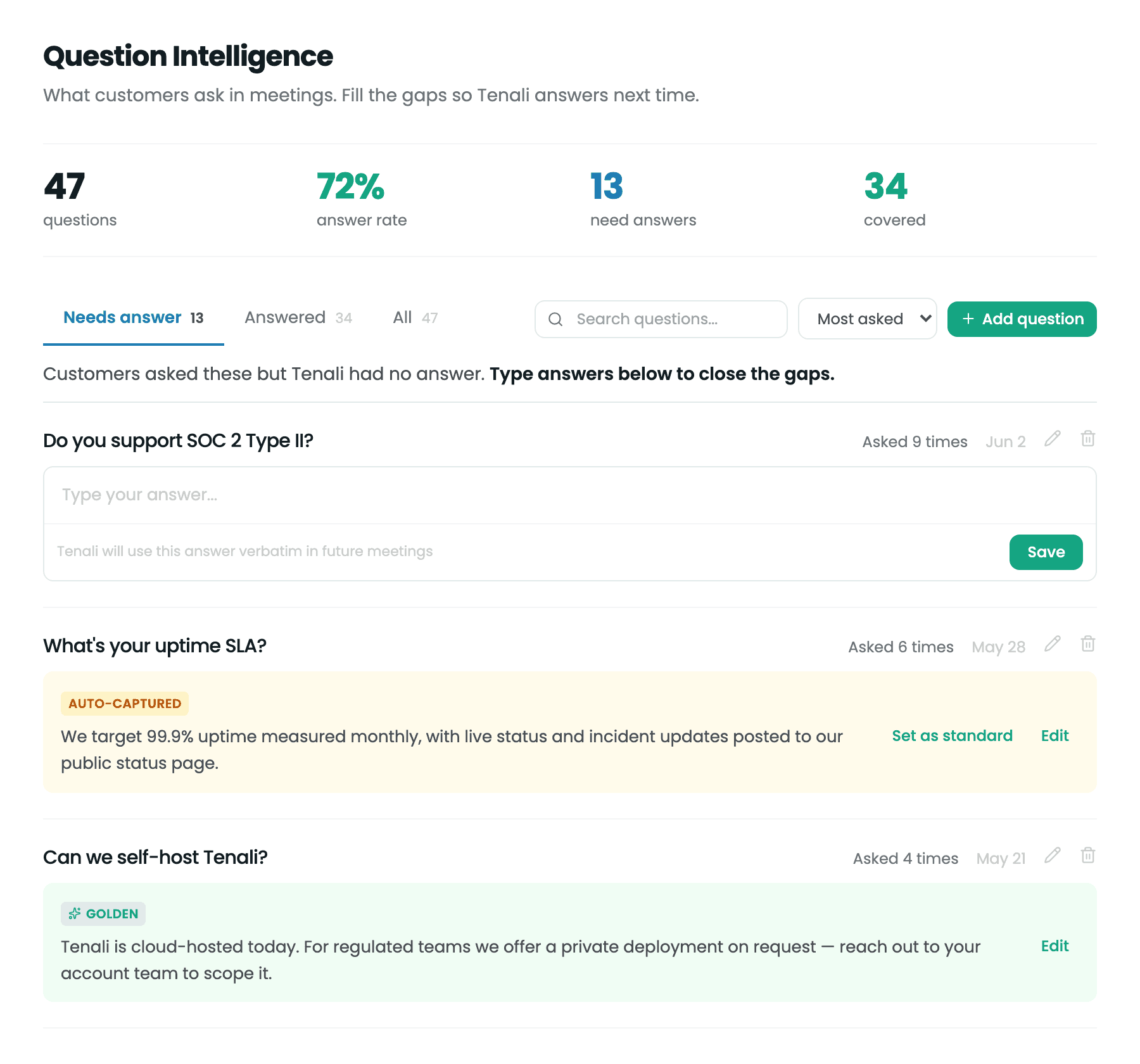
Question Intelligence dashboard
The Admin → Questions view showing the stat cards, tabs, and the list of questions captured from meetings.
Where to Find It
Question Intelligence lives at Admin → Questions, titled "Question Intelligence", with the tagline "What customers ask in meetings. Fill the gaps so Tenali answers next time." It's available to admins.
Four stat cards sit at the top so you can see coverage at a glance:
- questions — total distinct questions captured
- answer rate — the share of captured questions that have an approved answer
- need answers — the open gaps to close
- covered — questions Tenali can already answer
Below the stats, three tabs let you focus: Needs answer, Answered, and All. By default the dashboard shows your all-time results sorted by Most asked, so the questions customers raise most often sit right at the top. Use the "Search questions..." box to find a specific topic, and the sort dropdown to switch between Most asked and Most recent.
Focused on Real Questions
Not every question in a meeting deserves an admin's attention. Tenali automatically keeps low-value questions — meeting logistics ("can everyone see my screen?"), small talk, and backtracks ("sorry, what was that?") — off the dashboard, so you only see the real customer questions worth answering. Your stat cards and lists reflect just those meaningful questions; auto-hidden items aren't counted.
To review what Tenali set aside, switch on the Filtered view. Each hidden question is badged "Auto-filtered — hidden, not deleted" — nothing is lost. From there you can:
- Restore a question Tenali hid if it actually matters, moving it back into your main list and stats.
- Hide a question yourself if some noise slipped through onto the main list.
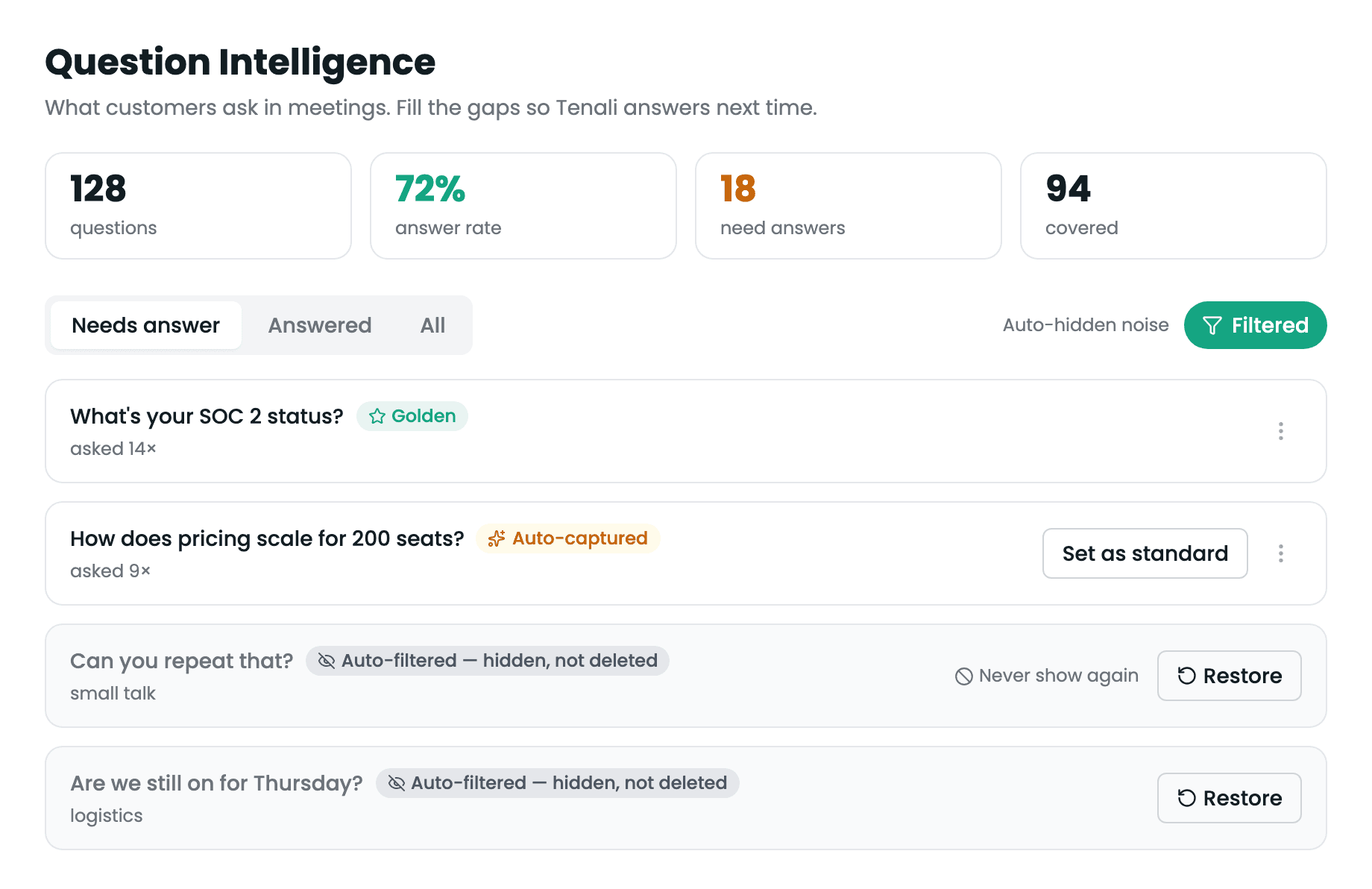
Filtered questions view
The Question Intelligence dashboard with the Filtered view toggled on, showing auto-hidden questions each badged 'Auto-filtered — hidden, not deleted' alongside their Hide / Restore actions.
Removing a Question for Good
If a question should never appear anywhere, use "Never show again." It removes the question now and blocks it from coming back — not just on the dashboard, but in the live overlay reps see during calls and in anything you import later. Changed your mind? The action is undoable.
Answering an Unanswered Question
Start on the Needs answer tab — these are questions customers asked that Tenali couldn't answer yet.
- 1
Open the Needs answer tab
Sort by Most asked to tackle the highest-impact gaps first. Each question shows how often it was asked and when it was last raised.
- 2
Type your answer
Write the answer the way you want a rep to say it in the answer box under the question.
- 3
Save
Click Save. The hint says it all: "Tenali will use this answer verbatim in future meetings." The next time a customer asks that question, your wording is what surfaces.
Auto-captured vs. Golden Answers
An answered question carries one of two labels:
- Auto-captured (amber) — an answer Tenali assembled on its own from your past meetings and connected sources. It's a useful starting point, but it isn't locked in.
- Golden (green, with a star) — an answer an admin has approved. This is the standard Tenali delivers verbatim.
Every Auto-captured answer shows a "Set as standard" button. Click it to promote that answer to Golden in one click — Tenali confirms with "Set as the standard answer — Tenali will use it verbatim in future meetings," and the label turns green. To reword first, click Edit, adjust the text, and Save — your edited answer becomes the standard.
Editing a Question's Wording
Sometimes the captured phrasing is awkward or too specific. Click the pencil icon next to a question to edit its wording (up to 500 characters). The editor reminds you the change "applies on the next meeting" — so existing data stays put and Tenali recognizes the cleaner version going forward.
Adding a Question Manually
Know a question that's coming but hasn't shown up yet — a new pricing tier, a security ask, a competitor comparison? Add it ahead of time.
- 1
Click Add question
Use the "Add question" button to open the "Add a question" dialog.
- 2
Enter the question and an optional answer
The question is required; the answer is optional. Leave the answer blank to seed the wording now and answer it later.
- 3
Save it
Click Add question. If you included an answer, Tenali can use it in future meetings right away; if you left it blank, it shows up under Needs answer to finish later.
Importing External Transcripts
If your team's calls happened on another platform, you can bring those transcripts in and Tenali will detect the questions in them automatically. The "Import external transcripts" section sits at the bottom of the page.
Use "Import from Fireflies" to pull in meetings from a connected Fireflies account. If Fireflies isn't connected yet, you'll be prompted for your API key first, then shown a picker to choose which meetings to import. Questions from those meetings appear in your list shortly after.
Gong call import is available too — see Import Gong Calls. Imports from more platforms, including Fathom and Otter, are rolling out; you'll be able to bring those transcripts straight into Question Intelligence once they land.
Next Guides
Was this page helpful?