
Organization Sources & Question Analytics
Publish org-wide knowledge every rep can use, then watch what customers keep asking.
Give your whole team one shared, trusted answer base — instead of each rep building their own. As an admin, the sources you add here are visible to every user in your organization automatically.
Organization Sources
Open Admin → Sources to manage the Organization Sources that all users share. The page reads "Organization-wide data sources visible to all users." Anything you add becomes part of every rep's answers — in chat and live on calls — without them lifting a finger.
You add org sources exactly the way reps add their own, using the source-type rail down the left side:
- Sites — add any public URL (a product page, help doc, or knowledge base) with "Add Site"
- Computer — upload a PDF or document straight from your machine with "Upload from Device"
- Google Drive, One Drive, SharePoint — pick specific files or folders with "Add Files" (Tenali only indexes what you select, not the whole drive)
- Notion — pick pages with "Add Pages"
- Slack — choose a channel with "Add Channel" (public channels only — private and externally-shared channels can't be made org-wide)
Each connector needs to be connected once on the Integrations page before its files show up here. See How Connecting Works to connect, then the matching Sources guide to choose content.
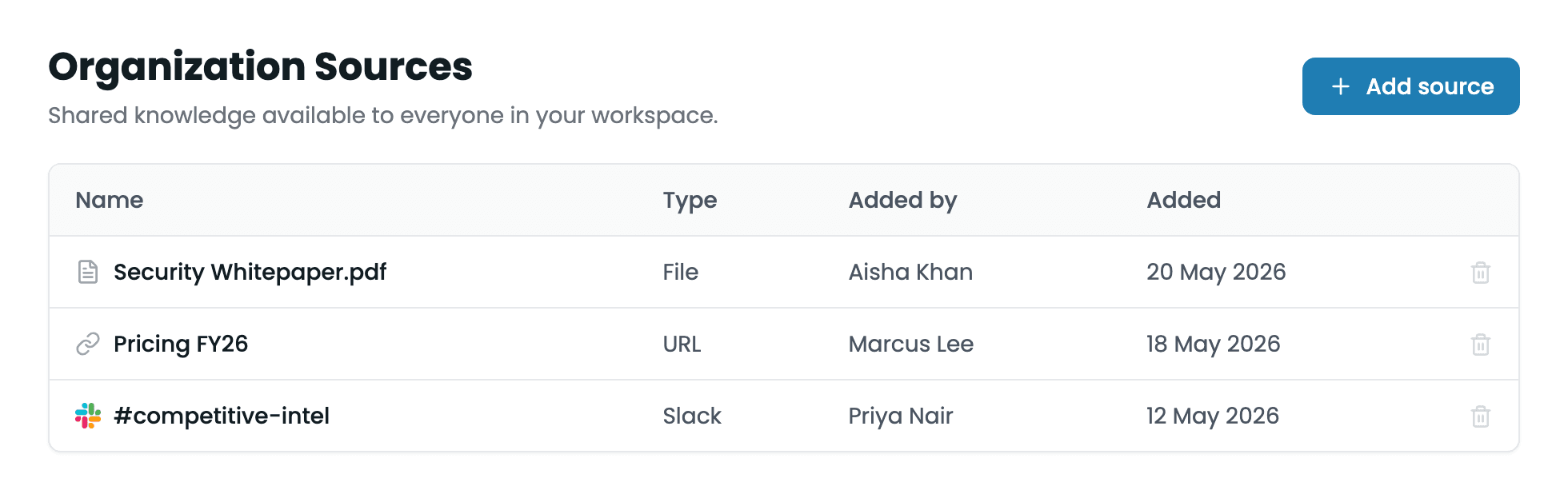
Organization Sources page
The Admin → Sources view: source-type rail on the left, storage card on top, and the org sources table with the Created By column.
Who can see and change them
Org sources are read-only knowledge for your reps — they get the answers, not the ability to edit them.
- Every user sees your org sources in their own Sources view, marked with a purple "Admin" badge in the "Added By" column (their own sources show "You").
- Reps cannot refresh or delete an admin-added source. If they try, they get "Cannot delete admin-uploaded source." Only admins manage org sources.
Reviewing and removing sources
The sources table lists each source with its Name, Base URL, Size, Status, and Created By (the admin who added it). Use the search box to find a source by name, and the "Refresh" button to reload the list.
To act on a single source, open the ⋮ menu at the end of its row:
- Refresh — re-pull the latest content so a changed doc or page is re-indexed; you'll see "Source refreshed successfully."
- Delete — remove it from the org base; you'll see "Source deleted successfully."
Storage
The card at the top of the rail shows total storage used across all your organization's sources, with a usage bar that turns from green to yellow to red as you fill up (it reads "X% consumed across all sources"). When you cross ~80%, an "Upgrade" link appears next to it. Keeping outdated sources pruned keeps both storage and answer quality healthy. For limits and upgrading, see Billing & Plans.
Question Analytics
Knowing what your sources should cover starts with knowing what customers actually ask. Tenali tracks the questions that come up in your team's meetings and surfaces the ones that still need a good answer — so you can fill the gaps and have Tenali answer them next time.
This lives in its own admin view. See Question Intelligence for the full workflow: reviewing the most-asked questions, setting a standard answer, and editing or adding answers your reps can rely on.
Next Guides
Was this page helpful?