
How Connecting Works
Connect every tool from one place — understand the OAuth and API-key flows, the connected state, and what to do next for each connector.
Every integration in Tenali connects from one screen, and almost all of them connect the same way. Learn the model once here, and every connector page becomes a two-minute job.
Where You Connect
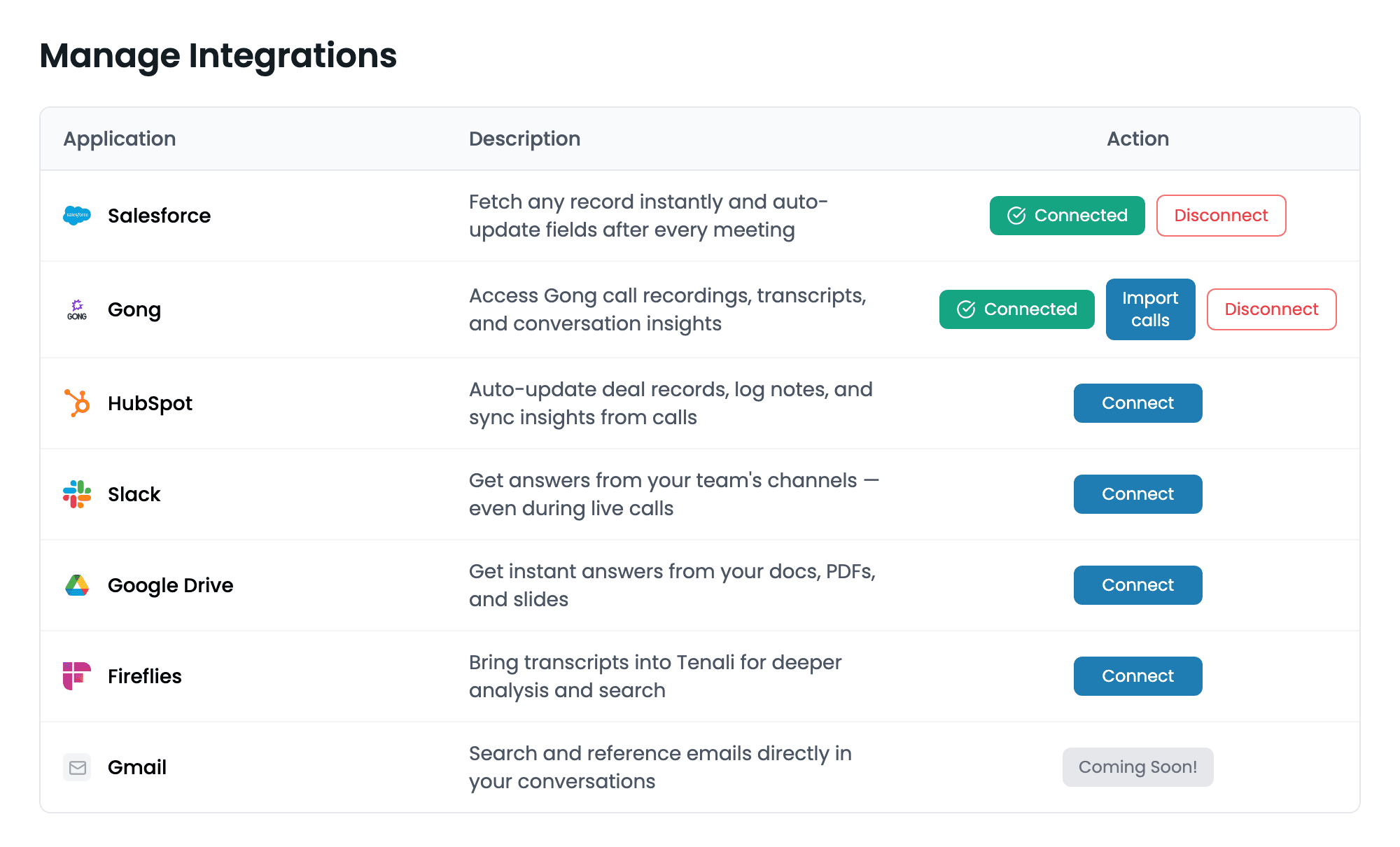
All connections live on the Integrations page, reached from the left sidebar of the web app. It's a single table with three columns — Application, Description, and Action — listing every tool Tenali supports. Connected tools sort to the top, available tools next, and anything not yet available shows a disabled "Coming Soon!" button.
Integrations page
The Integrations page showing the Application, Description, and Action columns with Connect, Connected, and Coming Soon buttons.
You reach this page from Integrations in the left sidebar, directly beneath Sources. To connect any tool, find its row and click the "Connect" button in the Action column.
The Two Connect Methods
What happens when you click "Connect" depends on the tool. There are exactly two paths.
The Connected State
After a successful connection, the Action column shows a "Connected" badge with a checkmark. Next to it you'll see a "Disconnect" button — click it any time to revoke the connection. A toast confirms "Your account has been disconnected!" and the row returns to its "Connect" state.
Gong shows one extra button in its connected row — "Import calls" — which opens a dialog to pull recordings in. See Import Gong Calls for that step.
Connecting Is Step One for Knowledge Sources
For your CRMs, connecting is all you need — Tenali starts working with them right away, and that includes chat writing back to them; see How CRM Connections Work. Your meeting tools may need one more step: Gong asks you to pull recordings in with Import calls — see Import Gong Calls.
For your knowledge connectors — Google Drive, OneDrive, SharePoint, Notion, and Slack — connecting only links the account. You then go to the Sources page to choose exactly what Tenali should ingest, so you're never dumping an entire drive into Tenali accidentally.
Slack is the one connector that does something the moment you connect it: as well as letting you pick channels, it makes Tenali available to message inside Slack. See Tenali in Slack.
- Google Drive / OneDrive — pick the specific files or folders to ingest.
- SharePoint — drill through site, then drive, then file.
- Notion — search your workspace and multi-select the pages you want.
- Slack — pick a channel from the dropdown to pull answers from.
See Sources for the full content-selection walkthrough for each.
What Connecting Unlocks in Chat
Every connection makes chat smarter — one conversation that spans your meetings, files, and apps:
- CRMs (Salesforce, HubSpot) — ask about deals, contacts, and pipelines in plain language; answers usually cite the record with a link back to it. With one healthy CRM connected to your own login, chat can also update the record — there's nothing to switch on. Forecast-moving changes are proposed for your review, while a purely additive batch can be written without a review card. CRM lookups happen in the web app — the in-call overlay answers from your meetings and knowledge base.
- Gong and Fireflies — imported calls become first-class meetings: searchable, countable, included in pipeline reviews, and cited like any other meeting.
- Knowledge connectors (Drive, OneDrive, SharePoint, Notion, Slack) — the content you pick becomes part of the knowledge chat and live-call answers draw on, with sources cited.
The chat guide's Tenali Across Your Connected Apps section shows how to steer a question toward a specific source and how answers cite each app.
Connectors by Category
Salesforce
OAuth. Ask about any opportunity in chat, and push the recap back to the record.
HubSpot
OAuth. Ask about any deal in chat, and push the recap back to the record.
Gong
API key (Access + Secret). Access Gong call recordings, transcripts, and conversation insights.
Fireflies
API key. Bring transcripts into Tenali for deeper analysis and search.
Google Drive
OAuth, then pick files on Sources. Get instant answers from your docs, PDFs, and slides.
OneDrive
OAuth, then pick files on Sources. Get instant answers from your docs, PDFs, and slides.
SharePoint
OAuth, then pick on Sources. Get instant answers from your SharePoint documents and sites.
Notion
OAuth, then search and pick pages on Sources.
Slack
OAuth, then pick a channel on Sources — and message Tenali directly in Slack.
Next Guides
Was this page helpful?