
Gong
Access Gong call recordings, transcripts, and conversation insights.
Your team's best calls already live in Gong — connect it so Tenali can pull those recordings, transcripts, and conversation insights in and put them to work. Once connected, you import the calls you want and Tenali turns them into searchable, answerable knowledge.
What connecting unlocks
- Bring your Gong calls into Tenali — import past recordings and transcripts so they become part of what Tenali can search and answer from.
- Surface insights in live calls — questions and answers captured from imported Gong calls feed Tenali so it gets sharper for future meetings.
- One place for every conversation — review imported calls alongside your Tenali meetings instead of jumping between tools.
Connect Gong
Gong connects with an API key — an Access Key and a Secret Key you generate inside Gong, then paste into Tenali. You'll need admin access to your Gong account to create the keys.
- 1
Open Integrations
In the web app at
app.tenali.ai, open Integrations in the left sidebar. Find Gong in the table under the "Application" column. - 2
Click Connect
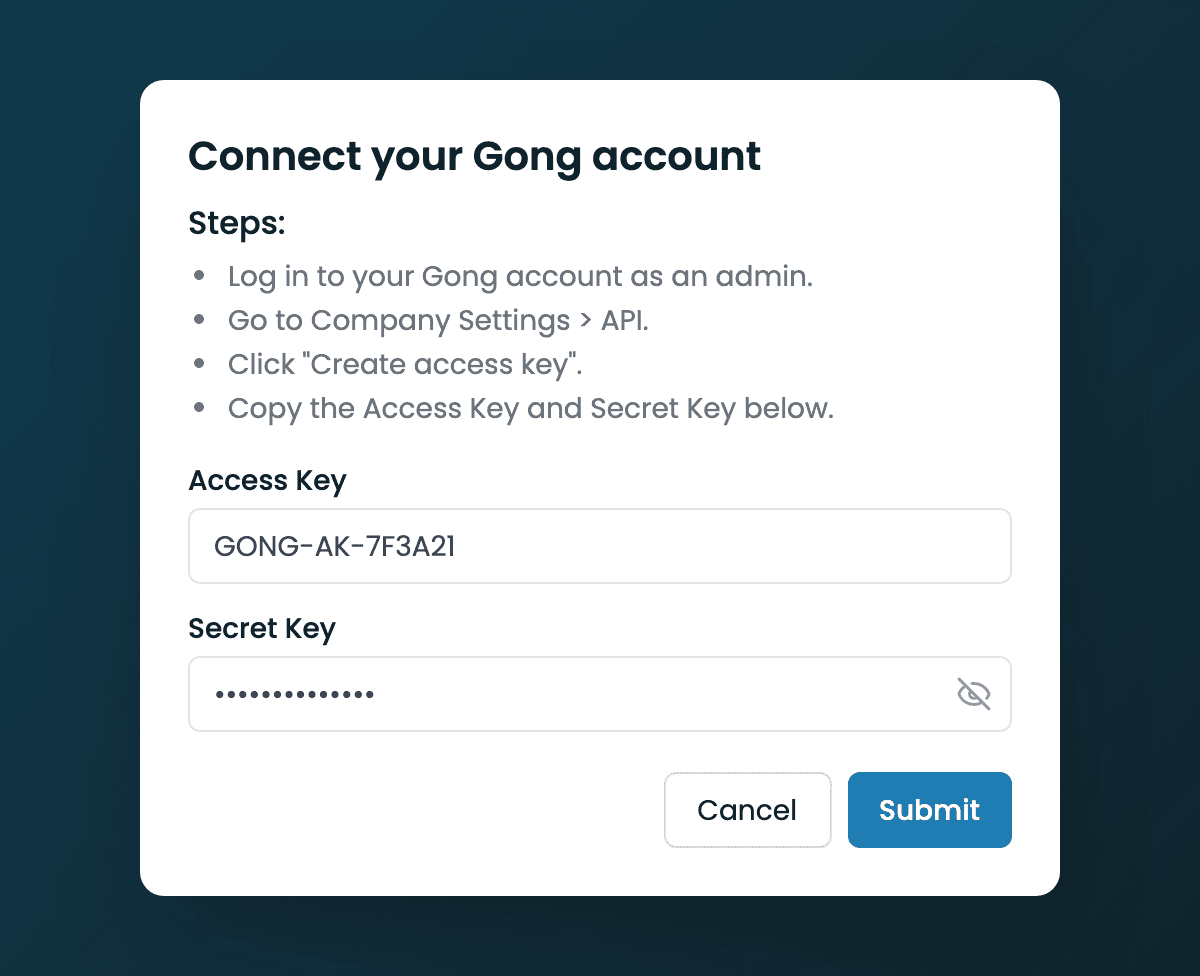
Click the Connect button in the "Action" column on the Gong row. The "Connect your Gong account" dialog opens with two fields.
- 3
Generate your keys in Gong
Following the steps in the dialog: log in to Gong as an admin, go to Company Settings > API, and click "Create access key". Gong shows you an Access Key and a Secret Key — keep that page open so you can copy both.
- 4
Paste your keys
Back in Tenali, paste your key into the Access Key field and your secret into the Secret Key field. Use the eye icon to reveal the secret if you want to double-check it.
- 5
Submit
Click Submit. The button stays disabled until both fields have a value. If the credentials are valid, Tenali shows the toast "Your Gong account is now connected!" and the Gong row flips to the Connected state.
Connecting Gong
The 'Connect your Gong account' dialog with the Access Key and Secret Key fields and the Submit button.
Import your calls
Connecting links your account — it doesn't pull anything in yet. Once Gong is connected, its row shows an extra "Import calls" button next to the Connected badge.
Click Import calls to open the picker, choose the calls you want, and Tenali imports them in the background. See Import Gong Calls for the full walkthrough of selecting and importing.
Disconnect Gong
On the Gong row, click Disconnect. Tenali confirms with "Your account has been disconnected!" You can reconnect any time by clicking Connect and entering your keys again.
Next Guides
Was this page helpful?