
Notion
Import Notion pages to get instant answers from your team's knowledge base.
Your team's best answers already live in Notion. Connect your workspace once, pick the pages worth surfacing, and Tenali can pull from them during calls and in chat — no copy-pasting required.
What connecting unlocks
- Answers from your Notion pages — the pages you select become searchable knowledge Tenali can pull from in Chat and live in the overlay during calls.
- No exporting or copy-pasting — pick the pages once and Tenali keeps them ready for retrieval.
- You choose what's included — Tenali only ingests the specific pages you pick, never your whole workspace.
Connect Notion
Notion connects through OAuth, so there are no keys to copy — you just authorize Tenali against your workspace.
- 1
Open Integrations
In the web app, open Integrations in the left sidebar. Find Notion in the Application list.
- 2
Click Connect
Click the "Connect" button in the Action column. A new tab opens.
- 3
Authorize Tenali in Notion
Sign in to Notion in the new tab and approve access to your workspace. You'll choose which pages Tenali can read during the Notion authorization step. Tenali detects the connection automatically — you don't need to paste anything back.
- 4
Confirm it's connected
Back on the Integrations page, the Notion row now shows a "Connected" badge alongside a "Disconnect" button.

Connecting Notion
The Integrations page with the Notion row showing the Connect button, and the Connected state after authorizing.
Choose Which Pages to Import
Connecting Notion authorizes the workspace — it doesn't import anything yet. Next, head to Sources and pick the specific pages you want Tenali to learn from.
On the Sources page, choose Notion to open the "Import from Notion" dialog. From there:
- Search pages — type in the "Search pages..." box to find a page by title.
- Select pages — check the box next to each page you want. You can multi-select as many as you need; the footer shows a running count like "3 pages selected".
- Import — click "Import" to bring the selected pages in. Tenali confirms with a "Notion page(s) imported successfully" toast, and the pages appear in your source table.
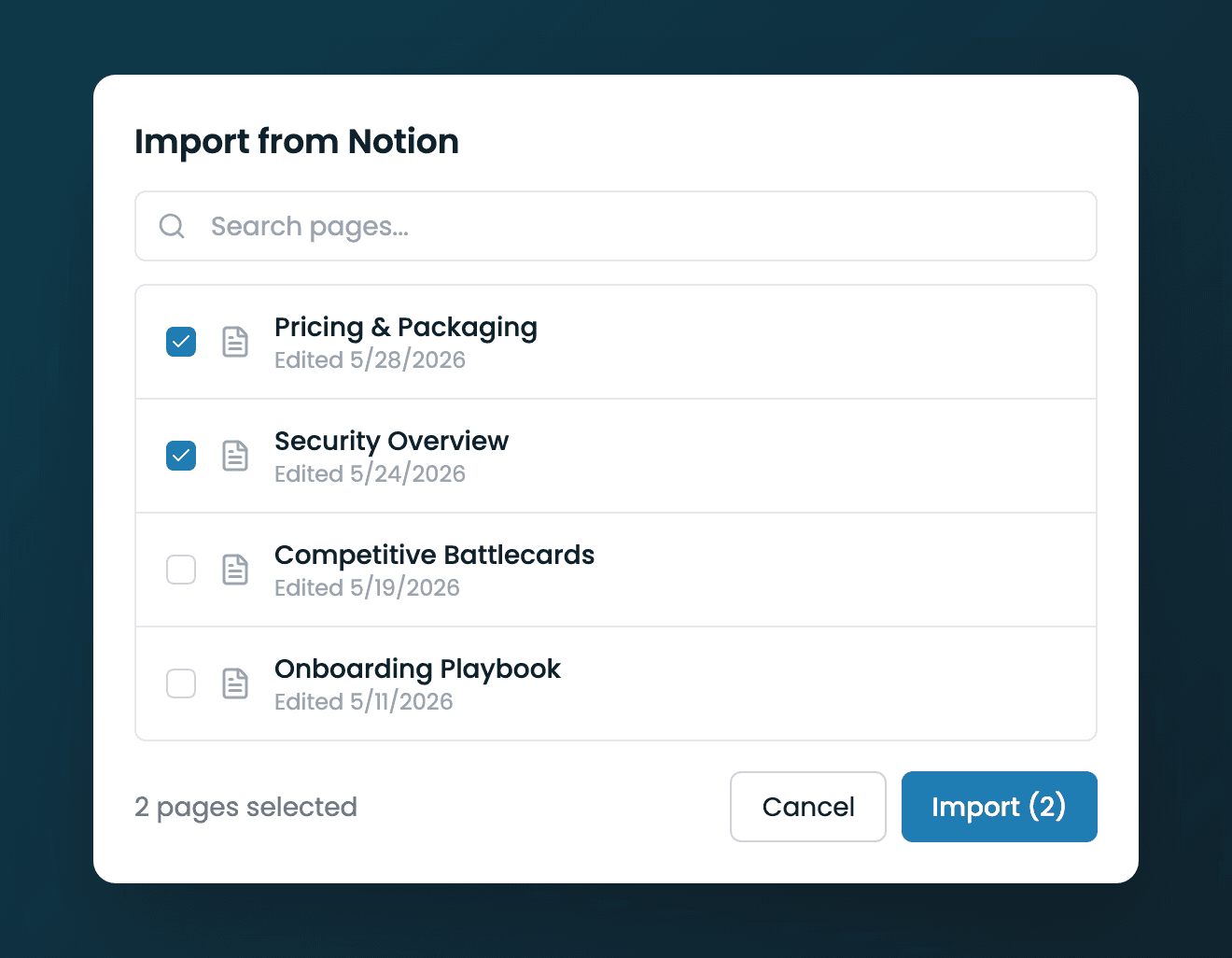
Import from Notion
The Import from Notion dialog with a search box, a checklist of pages, the selected-count footer, and the Import button.
See Connect Notion (Choosing Pages) for more on managing imported pages.
Disconnect
To remove the connection, click "Disconnect" on the Notion row on the Integrations page. You can reconnect anytime by clicking "Connect" again and re-selecting pages.
Next Guides
Was this page helpful?