
Update Your CRM from Chat
Ask Tenali to update deals, log meetings, and add contacts from your calls — forecast-moving changes wait for your approval, while purely additive ones can be written straight away.
Chat can do more than read your CRM. Ask it to update a deal from what was said on the call, and it drafts the exact field changes and shows you the before and after. By default, changes that move the forecast wait for your go-ahead; a batch of purely additive changes — a note, a task, a new contact — can be written straight away.
Before You Start
Two things have to be true:
- You have exactly one CRM connected, and it's healthy. That's the whole prerequisite: write-back turns on as soon as a HubSpot or Salesforce account is connected to your own login — there's no admin toggle, no plan tier, and nothing to request from support. Each person connects their own — see How CRM Connections Work. If your connection needs reconnecting, write-back quietly stops offering changes until you fix it. Connect a second CRM and Tenali stops writing until you disconnect one, rather than guessing which you meant.
- You're in chat or in Slack. Write-back runs in the web app and in a Slack DM with Tenali. It isn't available in the desktop overlay or on mobile. The two surfaces approve changes differently — see In Slack below.
What You Can Ask
Ask in plain language, the way you'd tell a teammate:
- "Update the Acme deal in HubSpot from today's call."
- "Log yesterday's Contoso meeting as an activity on their deal."
- "Set the next step on the Globex opportunity to 'send the MSA for redline'."
- "Move the Acme renewal to Negotiation."
- "Push the close date on the Globex deal out to August 14."
- "Create a follow-up task to send pricing to Dana, due Friday, on the Acme deal."
- "Add Priya Raman (priya@contoso.com), their VP of Operations, as a contact on the Contoso deal."
- "What deals do I have closing this quarter?"
- "Create a deal for Northwind from today's call." (HubSpot)
- "Undo the CRM changes you made in this chat."
Tenali finds the matching account, deal, and contacts first, and asks you which one if more than one could match. It can also list deals across your CRM without you naming an account first, so "show me everything in Negotiation" works.
What Tenali Can Change
Six kinds of change, and the two CRMs don't behave identically:
Update a deal or opportunity — stage, amount, close date, next step, description, name, and deal type, plus priority on HubSpot. Renaming works on both CRMs. On HubSpot the stage has to exist in that deal's own pipeline, or the change fails with "Could not resolve deal stage … in the deal's pipeline."
Log the meeting — on HubSpot this creates a note on the deal, company, or contact. On Salesforce it creates a completed Task with Type Meeting in Activity History — not a calendar Event, and not a Note. The activity is stamped with today's date, not the meeting date.
Create a follow-up task — subject, notes, and due date, linked to a deal, company, or contact. HubSpot creates it as a to-do; Salesforce as a Task with Status Not Started, Type Other. Tenali doesn't set an owner on either: on Salesforce the task lands under your own CRM user, and on HubSpot it's created unassigned, so pick it up in HubSpot if your team works from assigned tasks.
Add or update a contact — matched by exact email address. Writes the email (on creation), first name, last name, and job title, and can link the contact to a company. On Salesforce, if no last name was found, Tenali uses the part of the email before the @, because Salesforce requires one. On Salesforce, a contact can't be linked to an opportunity.
Create a company New — HubSpot only. Name, domain, industry, and description. Tenali checks for an existing company on the same domain or name first and links to that one instead of making a duplicate.
Create a deal New — HubSpot only. Name, stage, pipeline, amount, close date, description, priority, and deal type, associated to a company and optionally to contacts. If the company doesn't exist yet, Tenali can create it and the deal together in one step.
The Review Card
When at least one proposed change needs your review, chat shows a "Review CRM changes" card. A batch Tenali can apply entirely on its own doesn't produce one — the changes are simply written.
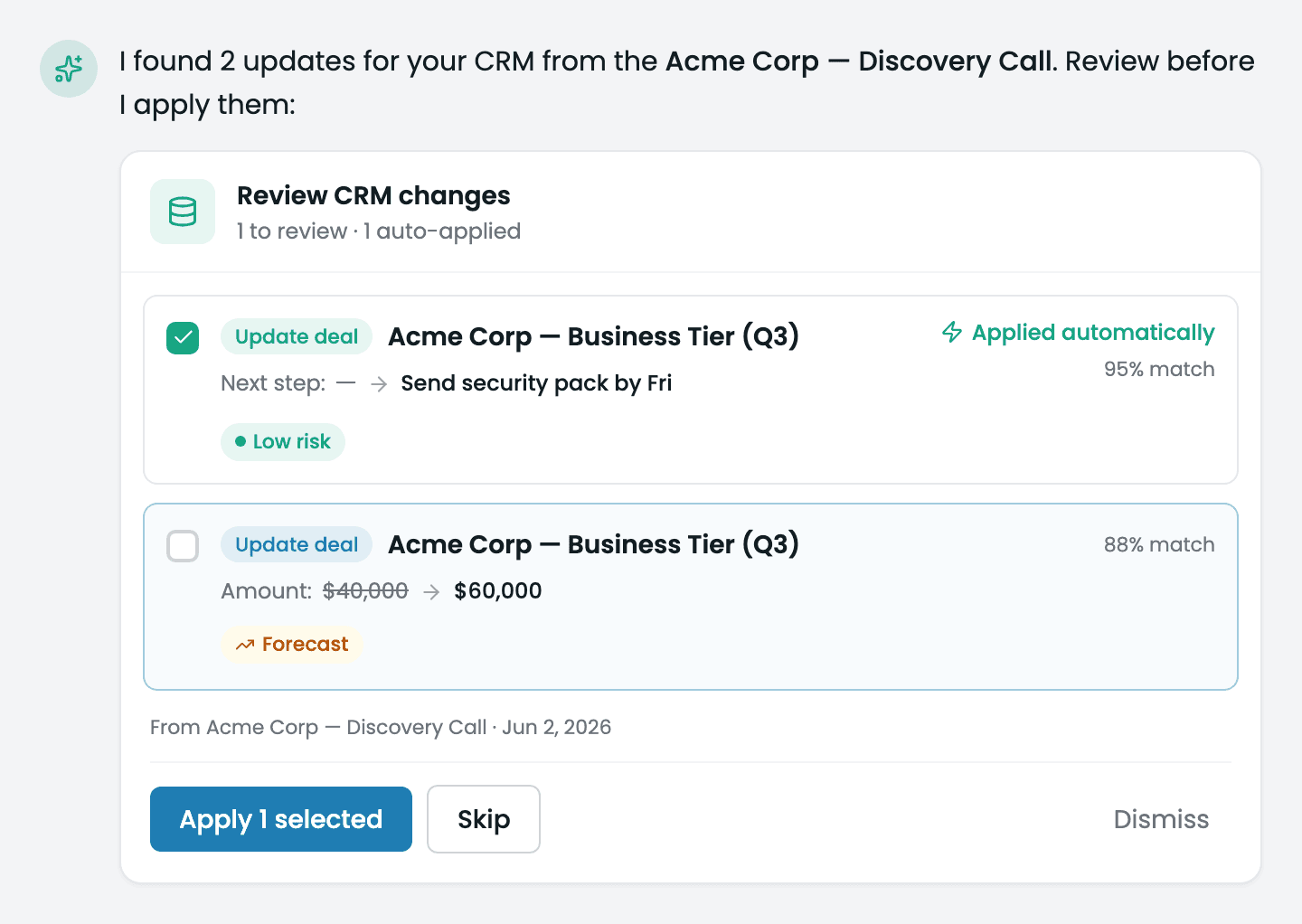
Review CRM changes card
The 'Review CRM changes' card in chat, listing each proposed update with a before→after field comparison, and a risk badge reading Low risk, Needs review, or High impact, plus Apply, skip, and dismiss controls.
What's on it
- A summary line across the top — for example "3 changes · 1 to review · 2 auto-applied · 1 high-risk". On a card that's still waiting on you, "auto-applied" is a bit of a misnomer: it counts the low-risk changes that will go through when you press Apply, not ones already written.
- Each change as a Field / Before / After row, so you see exactly what's being overwritten. A field that was blank shows as empty. A new company or deal has no before values, so it shows instead as a plain list of the fields Tenali will set.
- A risk badge: Low risk, Needs review, or High impact. High-impact changes sort to the top.
- The reason Tenali matched that record. When it isn't confident it found the right one, the change is held back for your review rather than applied — but no confidence number is shown on the card.
- The quote from the meeting that the change came from, so you can check the source.
Apply or skip
Every change that needs review arrives already ticked, and the button counts what will be written — Apply 3. So the card is opt-out: untick anything you don't want before pressing Apply, or press Skip all to discard the whole batch.
When a card appears at all, nothing in that batch is written until you press Apply. But a card only appears when at least one change in the batch needs review — if every change is one Tenali can apply on its own, it just makes them and tells you what it did in its reply. Which changes need review is covered next.
More than one card can appear
Pressing Apply doesn't necessarily end the job. Tenali carries on working, and if it proposes another batch that needs review, a second card stacks below the first. The first card turns green and reads "CRM changes submitted"; the new one is amber with its own Apply and Skip all. This is normal on multi-meeting requests like "log this week's calls to their deals" — keep an eye out for the follow-up card.
In Slack
The same write-back runs in a Slack DM with Tenali, with one deliberate difference: Slack approves nothing on its own.
Ask Tenali in a DM to update your CRM and it posts a Proposed CRM changes card — each change with its action, record, before-and-after fields, the match reason, the quote it came from, and a plain-language risk label — low risk, needs review, or high impact. Two buttons: Approve all, which asks you to confirm before writing, and Discard, which throws the batch away.
Long batches show the first 18 changes on the card with a note of how many more there are; approving still applies all of them. Once applied, the card is replaced with the outcome and links to the records Tenali touched.
Undo works the same way — ask in the same DM. See Tenali in Slack.
How Much Tenali Does On Its Own
Your wording sets how much Tenali applies without asking. There's no setting for this — Tenali reads each message you send. This applies in the web app; in Slack everything waits for you regardless of how you phrase it.
- By default, safe additive changes (logging a note, creating a task, adding a new contact) don't wait for your approval — on a card they're applied when you press Apply, and with nothing on the card to review they're simply written. Anything that writes a field on a record that already exists — stage, amount, close date, or any text field, whether it was already filled or blank — waits for you to tick it. Filling a blank field counts because undo generally can't put it back to blank, so it's treated as a change you should see rather than one you can quietly reverse.
- Say "just do it", "go ahead and…", "don't ask", or "automatically", and forecast changes go through too — except a move into any closed stage, and except creating a new company or deal. Those still land on the card for you to review and Apply.
- Say "ask me first", "let me review", "confirm before", or "preview", and every change waits for your tick, including the safe ones.
Three limits never move, however you phrase it: moving a deal into any stage your CRM counts as closed — whatever your org has named it — always needs your explicit tick, creating a new company or deal always shows up on the card, and Tenali never auto-applies a change when it isn't confident it matched the right record.
Undo a Change
Undo is a chat request, not a button. Ask in the same conversation — "undo that", "revert the last CRM update", "take that back" — and Tenali first shows a confirm card listing exactly what will be reverted, one line per change; nothing is touched until you approve it. On approval it restores the previous field values on the deal — including back to blank for the next step and description; other fields that were blank before stay populated — removes the contacts, companies, and deals it created, and reports item by item what it reversed and what it couldn't.
It has real limits, and Tenali tells you when it hits one:
- It covers the current conversation only, only your own changes, and at most the 25 most recent applied changes. Start a new chat and the earlier changes can't be undone from there.
- It generally can't restore a field to blank. The exceptions are next step and description, which are cleared back to empty if that's how they started; every other field Tenali filled from blank keeps the new value.
- It can't reverse an edit to a contact that already existed — only contacts Tenali created can be removed.
- It doesn't cover the Push to CRM button — use the Undo action on the push confirmation instead (see Push Summary to CRM).
When Tenali can't reverse something it says so: "Couldn't automatically revert … please review it in the CRM."
Limits Worth Knowing
- Identical changes are de-duplicated for 24 hours, so asking twice won't write the same update twice.
- Your decision sticks across a reload. Once you've applied or skipped a card, the outcome is saved on the message — reload the page or open the chat in a second tab and you'll see the settled card with its per-change results, not a fresh pending one. A card you haven't decided on also survives a refresh and works normally.
- Web app and Slack only — not in the desktop overlay, not on mobile.
- If write-back is switched off for your workspace while a card is open, pressing Apply writes nothing and every change comes back skipped.
- There's no CRM change history or audit screen inside Tenali — the record of what changed lives in the conversation and in your CRM.
Next Guides
Was this page helpful?