
All Team Meetings
See every meeting across your organization, browse by team member, and open any call to review its summary and transcript.
When you need to check what a rep actually said on a call — or audit coverage across the whole team — you shouldn't have to ask them to forward you a recap. The admin Meetings view gives you read access to every meeting in your organization, organized by person, so you can find and open any call in seconds.
This page is for admins. You'll find it under Admin in the left navigation, with the topbar titled "Admin - Meetings". Only Admins can open it.
How the View Is Laid Out
The Meetings view has two panels:
- Left panel — the user list. Every member of your organization, sorted alphabetically by name. Each entry shows the person's name and, when it differs, their email underneath.
- Right panel — that person's meetings. Selecting a user loads their meetings into a table with Title, Date, and Time columns. A header above the table shows the selected person's name and their total meeting count.
When the view first opens, the first user in the list is selected automatically, so you'll see meetings right away.
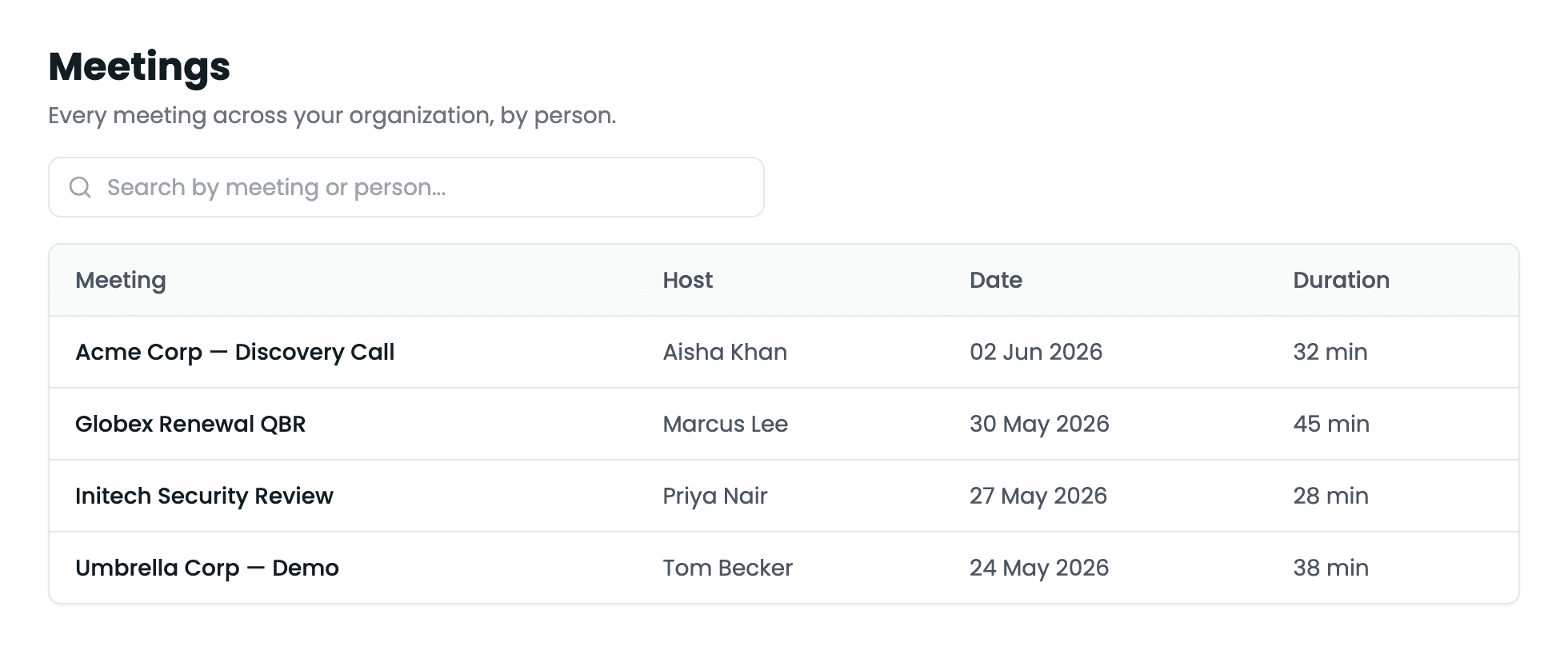
Admin Meetings view
Two-panel admin Meetings view: searchable user list on the left, the selected user's meeting table on the right.
Finding a Meeting
- 1
Find the team member
Type into the "Search users..." box at the top of the left panel to narrow the list by name or email. Then click a name to load their meetings.
- 2
Search within their meetings
Use the search box above the meeting table to filter that person's meetings by title. The list filters as you type.
- 3
Open the meeting
Click any row to open that meeting's full detail — its summary and complete transcript — exactly as the owner sees it.
What You Can Do Here
- Audit a specific call — open any meeting to read its summary and full transcript, useful for coaching, deal reviews, or confirming what was committed to a customer.
- Spot coverage gaps — the per-user meeting count surfaces who's recording calls and who isn't.
- Pull up a call fast — search by user, then by meeting title, to land on the right conversation without pinging the rep.
Admin Full Access
With Admin Full Access enabled, the Meetings view goes beyond read-only — you can work across the whole team's calls exactly as if they were your own:
- Open and edit any meeting — rename it, edit its Q&A answers, mark action items complete, delete it, export a PDF, or share it. You get the owner's full set of controls on any meeting in the organization.
- Play any recording — watch or listen to a team member's meeting straight from the admin meeting-detail page, as described below.
- Download transcripts — pull the complete transcript straight from the admin meeting-detail page.
- Ask AI across the team — question Tenali about any team member's meetings, not just your own, from the org-wide chat panel below or straight from the main chat.
Every admin action here — playback of another person's recording, edits, deletions, exports, shares, and downloads — is audit-logged.
Play a Team Member's Recording
With Admin Full Access, opening a meeting from the admin Meetings view plays its recording right on the meeting-detail page — the same view the owner gets:
- Video or audio, automatically — calls on fully supported platforms play as video; audio-only desktop captures get an audio player instead of a blank video frame.
- Processing state — if the recording is still being prepared, the player shows a processing state and keeps checking for a couple of minutes; for longer processing, reopen the meeting once it's ready.
- Access badge — the page labels your access level: an amber "Admin edit access" badge when your workspace has edit rights, or a gray "Read-only admin view" badge otherwise.
- Transcript download — pull the full transcript from the same page.
Every playback of another person's recording is audit-logged. Without Admin Full Access, recordings stay available only on your own meetings.
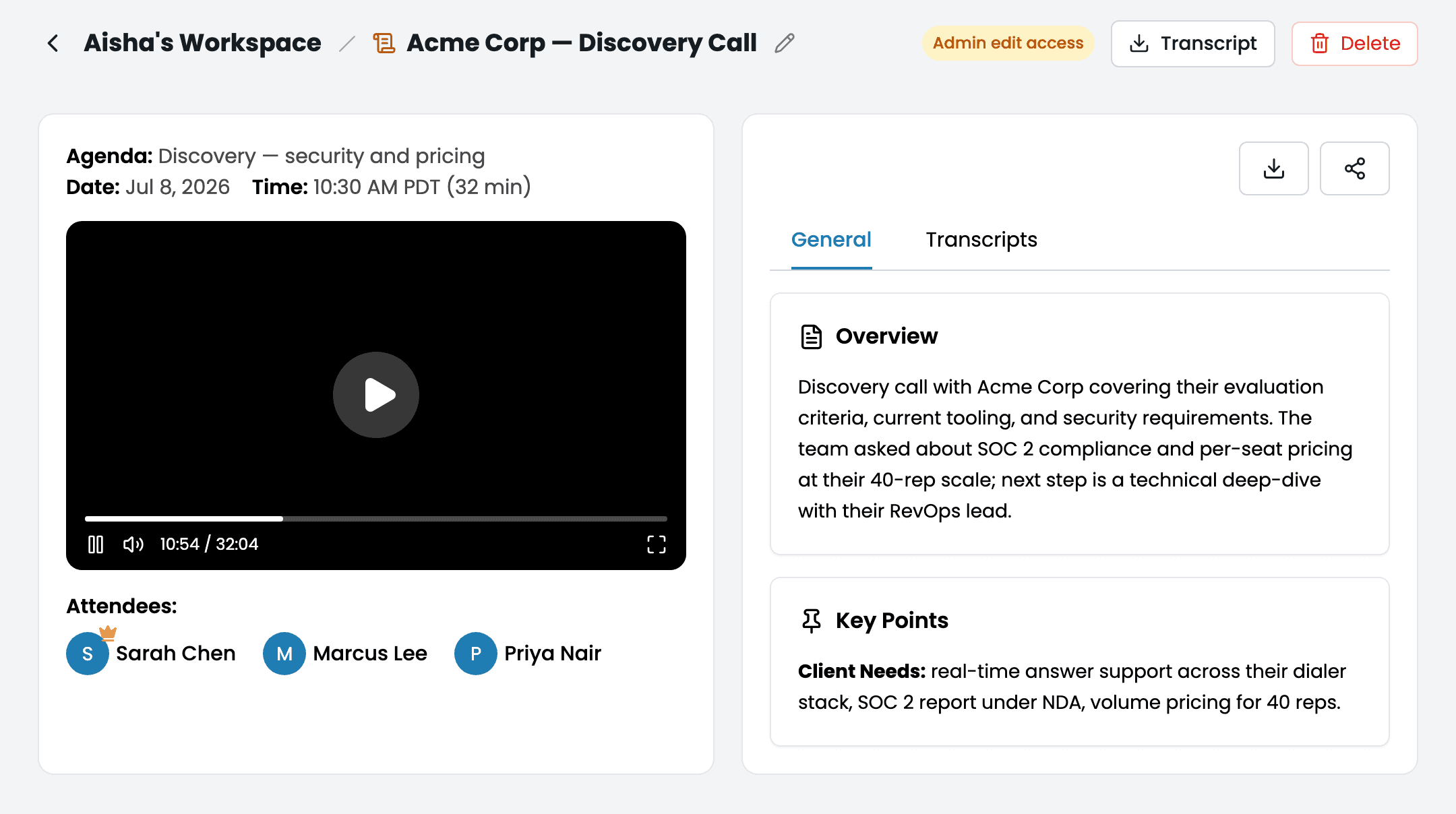
Admin playback of a team recording
The admin meeting-detail page playing a team member's recording, with the Admin edit access badge, Transcript download, and Delete controls in the topbar.
Ask AI About Your Team's Meetings
At the top of the Meetings view, the "Ask AI about your team's meetings" bar lets you query across everyone's calls in plain language. Asking a question slides open a chat panel on the right, complete with your own saved history.
- 1
Ask a question
Type into the bar and send. The chat panel slides open on the right with Tenali's answer. Answers include clickable links to the meetings they cite, so you can jump straight to the source call.
- 2
Keep the thread going
Ask follow-ups in the same panel — Tenali keeps the earlier context in the conversation.
- 3
Reopen a past conversation
Click the history (clock) button to see your saved conversations, then reopen any one to pick up where you left off.
- 4
Start fresh
Click New Chat to begin a clean thread when you switch topics or accounts.
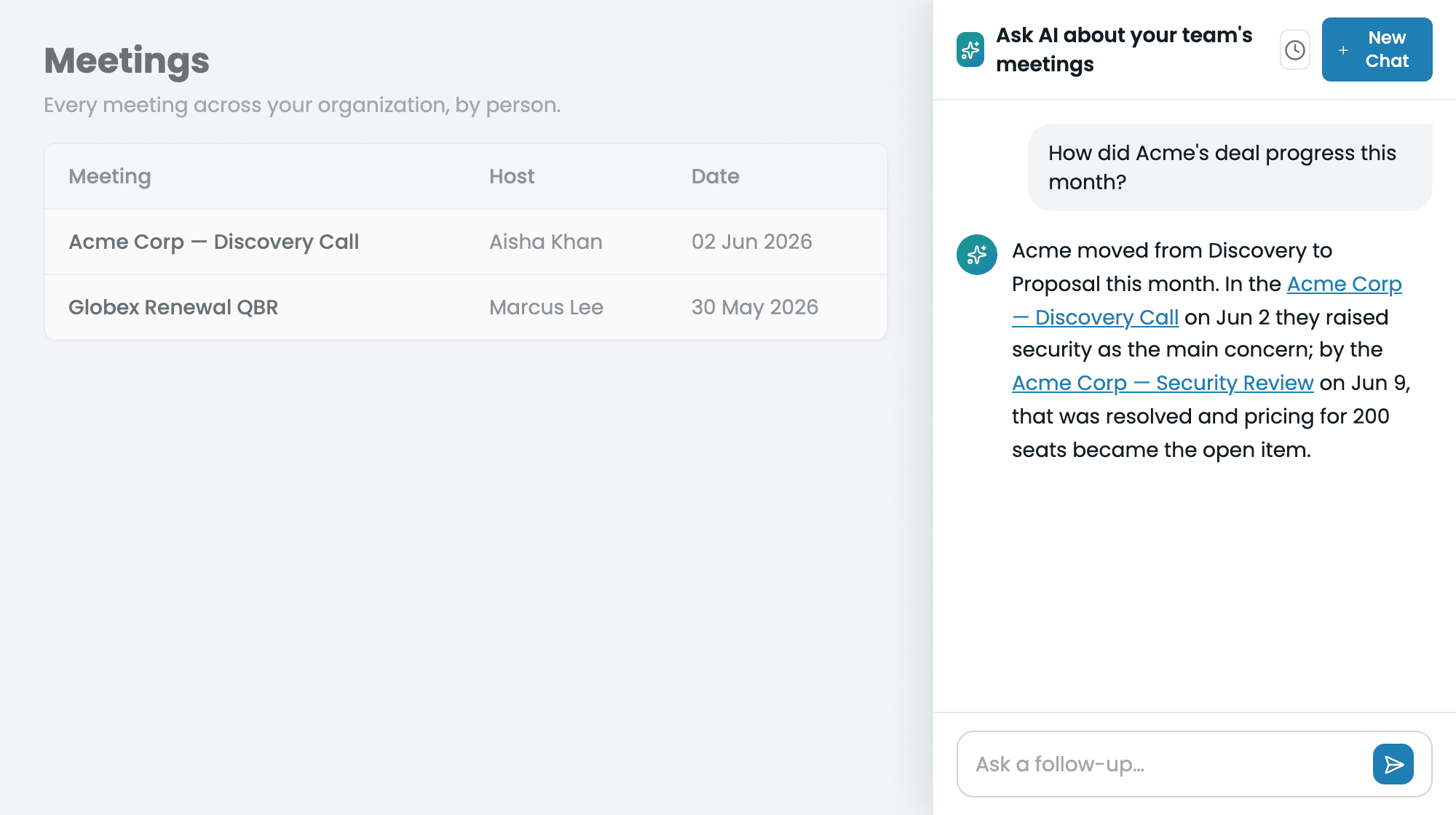
Org-wide chat panel
The admin Meetings view with the 'Ask AI about your team's meetings' chat panel slid open on the right, showing an answer with clickable links to the cited meetings and the New Chat and history (clock) buttons.
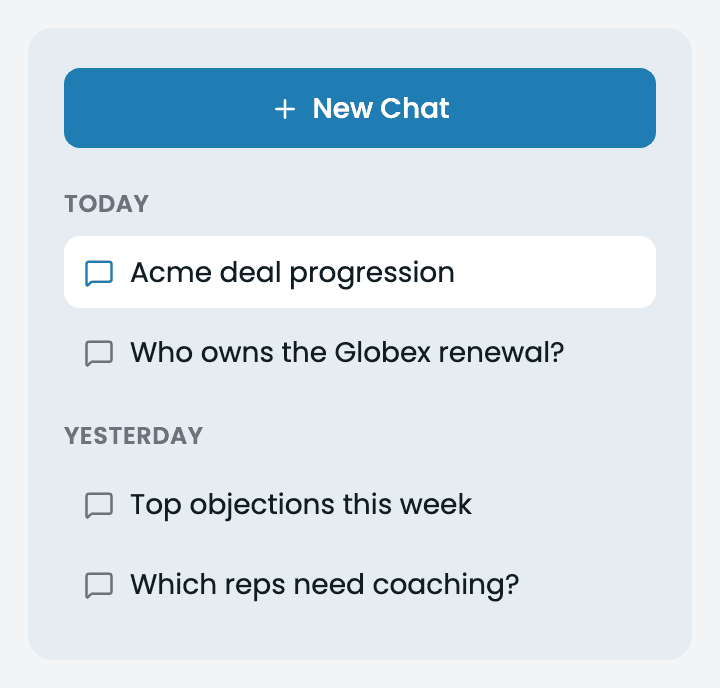
Chat history (clock button)
The org-wide chat panel's history list opened from the clock button, listing the admin's past conversations to reopen.
This is the same engine that powers user chat, so you can also ask inventory and pipeline questions across the team — for example, meeting counts by day or pipeline by account.
What to Ask Across the Team
- "What objections came up this week?"
- "How many calls did each rep have this month?"
- "Who hasn't logged a call in the last two weeks?"
- "What meetings was Priya part of?"
- "Review Priya's pipeline"
- "How many meetings did the team have with Acme?"
A few things Tenali gets right that generic search doesn't:
- Team activity is complete — activity questions return a per-rep rundown, most active first, including reps with zero recorded calls and each rep's last-active date, so coverage gaps are visible instead of invisible.
- People resolve by name — questions about a teammate match meetings they recorded or attended, and former team members still resolve (flagged "(former team member)" in answers).
- Unknown names fail honestly — if a name doesn't match a workspace member, Tenali says so rather than guessing or silently widening the search.
The All Meetings Switch in Main Chat
Org-wide answers aren't confined to the admin area. Admins with Admin Full Access also get an "All meetings / My meetings" switch on the main chat input:
- All meetings — the default for entitled admins — answers from every recording in the workspace. A manager who records no calls personally can still ask "What objections came up this week?" and get answers drawn from the team's calls.
- My meetings narrows chat back to your own calls. Your choice is remembered per browser.
The switch's tooltip says it plainly: "This switch controls what the chat searches. All meetings covers every recording from your team. My meetings is just your own." Team members without admin access never see the switch — their chat always covers only their own meetings.
With All meetings on, the Sources panel on each answer shows who recorded each cited meeting ("You" for your own) alongside its date and platform logo, and clicking a teammate's cited meeting opens it in the admin meeting view rather than an error.
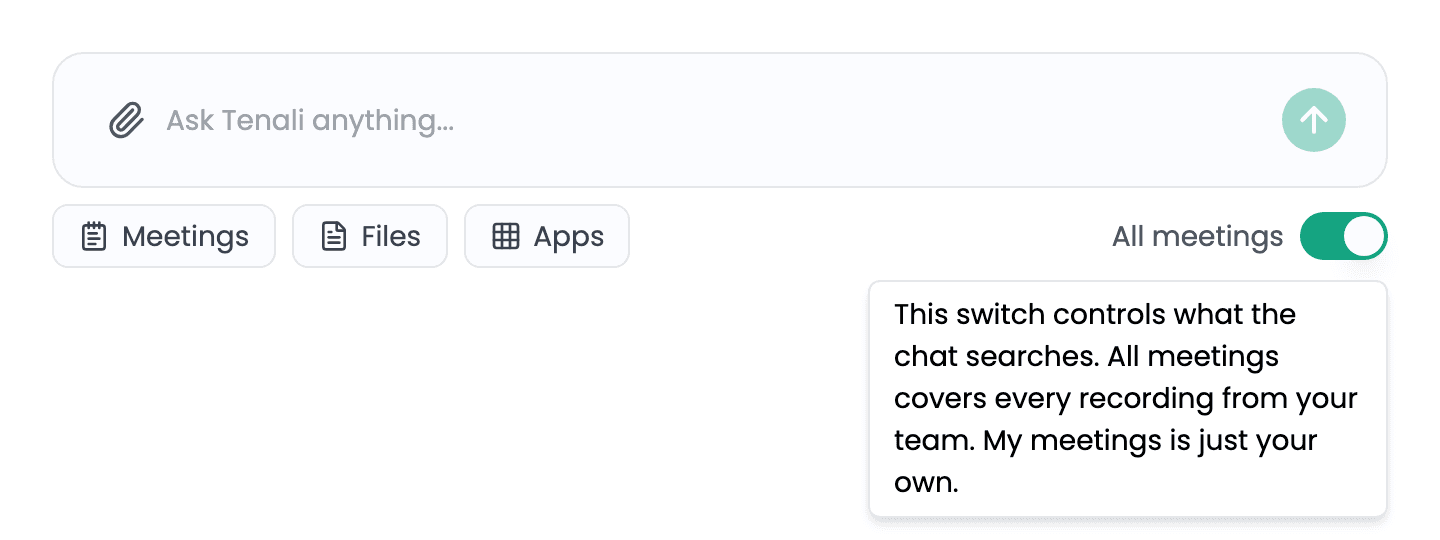
All meetings switch in the chat input
The main chat input as an entitled admin, showing the All meetings / My meetings switch at the right end of the toolbar with its tooltip.
Next Guides
Was this page helpful?