
Profile & Settings
Update your name, manage integrations, and check billing from one place.
Everything about your account lives in one place. Open Manage Profile from the web app to update your name, reconnect a tool, or check your plan.
Opening Manage Profile
Manage Profile opens with a Settings sidebar on the left and the selected tab on the right. The sidebar tabs are:
- Profile — your name and email
- Billing — your plan, usage, and limits
- AI Assistants — your connections to Claude, ChatGPT and other assistants; see Tenali MCP Server.
- Log out — sign out of the web app
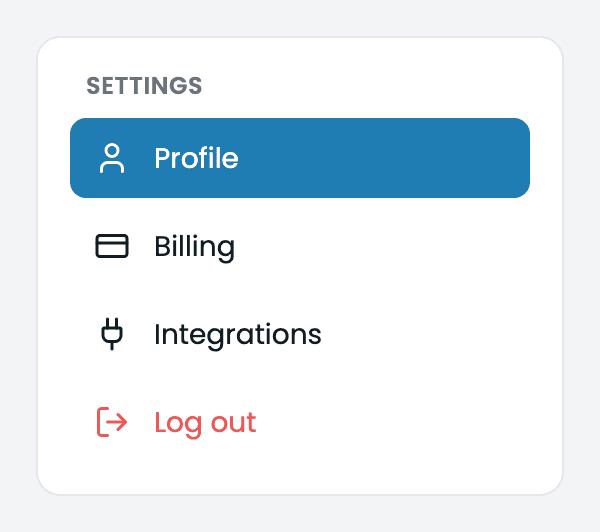
Manage Profile sidebar
The Settings sidebar with Profile, Billing, AI Assistants, and Log out tabs.
Profile tab
The Profile tab is where you set how your name appears across Tenali.
- 1
Edit your name
Update the First Name and Last Name fields.
- 2
Save or cancel
Click Save to apply your changes, or Cancel to revert. Both buttons stay disabled until you actually change something.
Your Email is shown below the name fields for reference. It comes from the account you signed in with and isn't editable here.
Billing tab
The Billing tab shows your current plan, recording and storage usage, trial status, and how to upgrade. For a full walkthrough of what each number means and how to add more capacity, see Billing & Plan Management.
Connecting your tools
Integrations are no longer part of Settings. Open Integrations from the left sidebar instead.
Each connector connects differently (some via a sign-in window, others with an API key), and knowledge sources like Google Drive, Slack, and Notion need a second step to choose what content Tenali can use. For the full connect flow per tool and what each one unlocks, see Integrations.
Next Guides
Was this page helpful?