
Transcripts, Recordings, and Sharing
Read the full transcript, replay the recording, download a meeting as a PDF, and share a read-only link.
Every meeting Tenali captures gives you three things you can act on after the call: the full transcript, the recording, and a clean way to hand it off. This page covers reading the transcript, replaying the recording, downloading the whole meeting as a PDF, and sharing a view-only link.
Read the transcript
Open any meeting from your library, then switch to the Transcripts tab next to General. You get the conversation laid out chronologically, speaker by speaker, exactly as it happened — no scrubbing through audio to find the one line you remember.
- Each turn shows the speaker's name and what they said.
- Every entry carries a timestamp so you can jump straight to that moment.
- The transcript stays in sync with the summary on the same page, so you can validate any claim in the summary against the exact words on the call.
Play the recording
When a recording is available, the meeting page shows a built-in player at the top — a video player for fully supported calls (Zoom, Meet, Teams), or an audio player for audio-only calls — Slack huddles, Webex, and every universal-capture platform. Press play to review the call. The transcript is linked to playback: click any transcript line (or its timestamp) and the recording jumps to that moment, and the currently playing line highlights as the recording plays. That makes it easy to coach on a specific exchange or re-watch how an objection was handled.
If the recording isn't ready yet you'll see "Video is being processed..." — check back in a few minutes. If no recording was captured for the meeting, the player shows "Video not present".
In workspaces with Admin Full Access enabled, workspace admins can also play team members' recordings from the admin Meetings view — every such playback is audit-logged. See All Team Meetings.
Download a meeting as a PDF
Need to send a meeting to someone who isn't in Tenali, or keep a record for your files? Download it as a single PDF. This is also how you export a transcript — the PDF bundles the summary and the full speaker-by-speaker transcript into one document.
- 1
Open the meeting
Go to your meeting library and open the meeting you want to export.
- 2
Click the Download PDF button
In the summary toolbar, click the Download PDF button (the download icon). The button is disabled until the meeting has a summary, so wait for processing to finish if you don't see it active yet.
- 3
Save the file
Tenali generates a PDF containing the meeting title, date, duration, attendees, the summary, and the complete transcript — then downloads it to your device.

Download and Share in the summary toolbar
The meeting summary toolbar — the Download PDF (download icon) and Share (share icon) buttons sit at the right, next to Push to Salesforce.
Share a meeting
Want to hand a call off to a teammate, manager, or customer? Generate a read-only link in a couple of clicks.
- 1
Open the Share Meeting dialog
On the meeting page, click the Share button (the share icon) in the summary toolbar. The Share Meeting dialog opens with the meeting title and date.
- 2
Copy the share link
Tenali creates a share link in the form
app.tenali.ai/summary/shared/{uuid}. Click the copy button next to it — you'll see "Text has been copied to your clipboard!" confirming it's ready to paste. - 3
Send it
Paste the link into an email, Slack message, or wherever you're handing off the call.
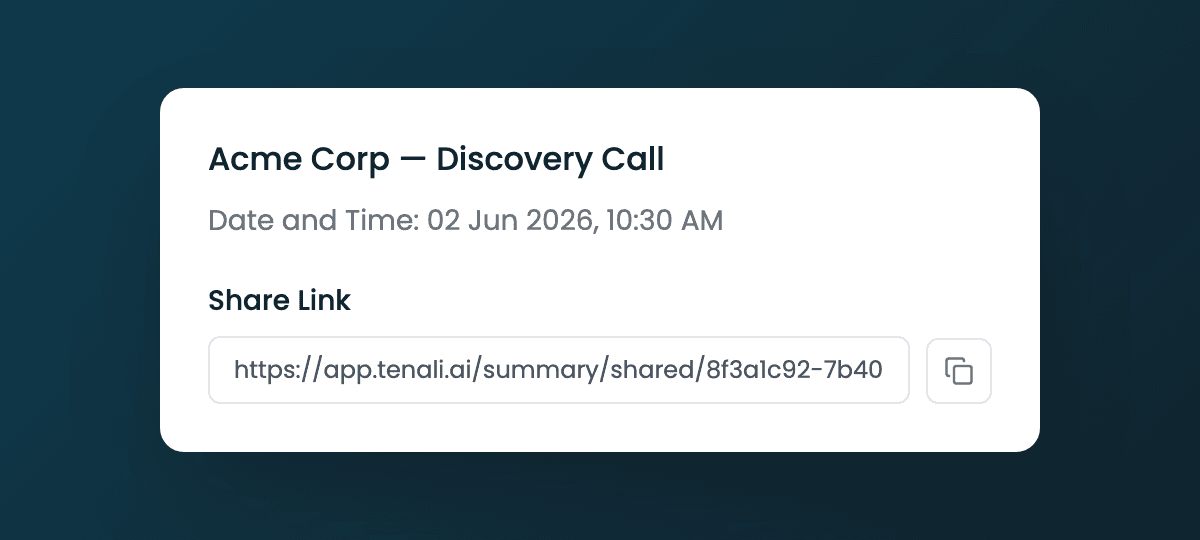
Share Meeting dialog
The Share Meeting dialog showing the share link and copy button.
What happens when you share
The link opens a view-only version of the meeting. What a recipient sees depends on whether they're signed in to Tenali:
- Signed in to Tenali, in your workspace or any other: the full summary, the complete transcript speaker by speaker, and the recording, if one was captured. People outside your workspace don't see attendees' email addresses or the meeting's join link.
- Not signed in: the meeting title, the brief and the agenda, with a prompt to sign in for the rest.
What they cannot do — the shared view is strictly read-only:
- Editing action items is off — nothing can be checked off.
- Downloading the PDF is disabled for shared viewers.
- There's no way to push the meeting to your CRM.
- They can't re-share the meeting or generate their own link.
That's the benefit: recipients get the full context of the call without touching your data or your workflow. It's the cleanest way to bring a manager up to speed on a deal or hand a call to a teammate. A customer who isn't signed in to Tenali sees only the title, brief and agenda, so to send a customer the full recap, use Download PDF and attach it.
How long a link works
A share link keeps working until the meeting is deleted. Deleting the meeting stops its share links at once, so recipients can no longer open the summary, transcript, or recording.
Next Guides
- Meeting Summaries — switch between summary types and work the action items
- Chat: Ask Tenali Anything — query across this meeting and all your past calls
- Push a Summary to Your CRM — update HubSpot from the meeting (Salesforce is read-only today)
- Web App Overview — everything in your Tenali workspace
Was this page helpful?