
Getting Started
Understanding the Overlay
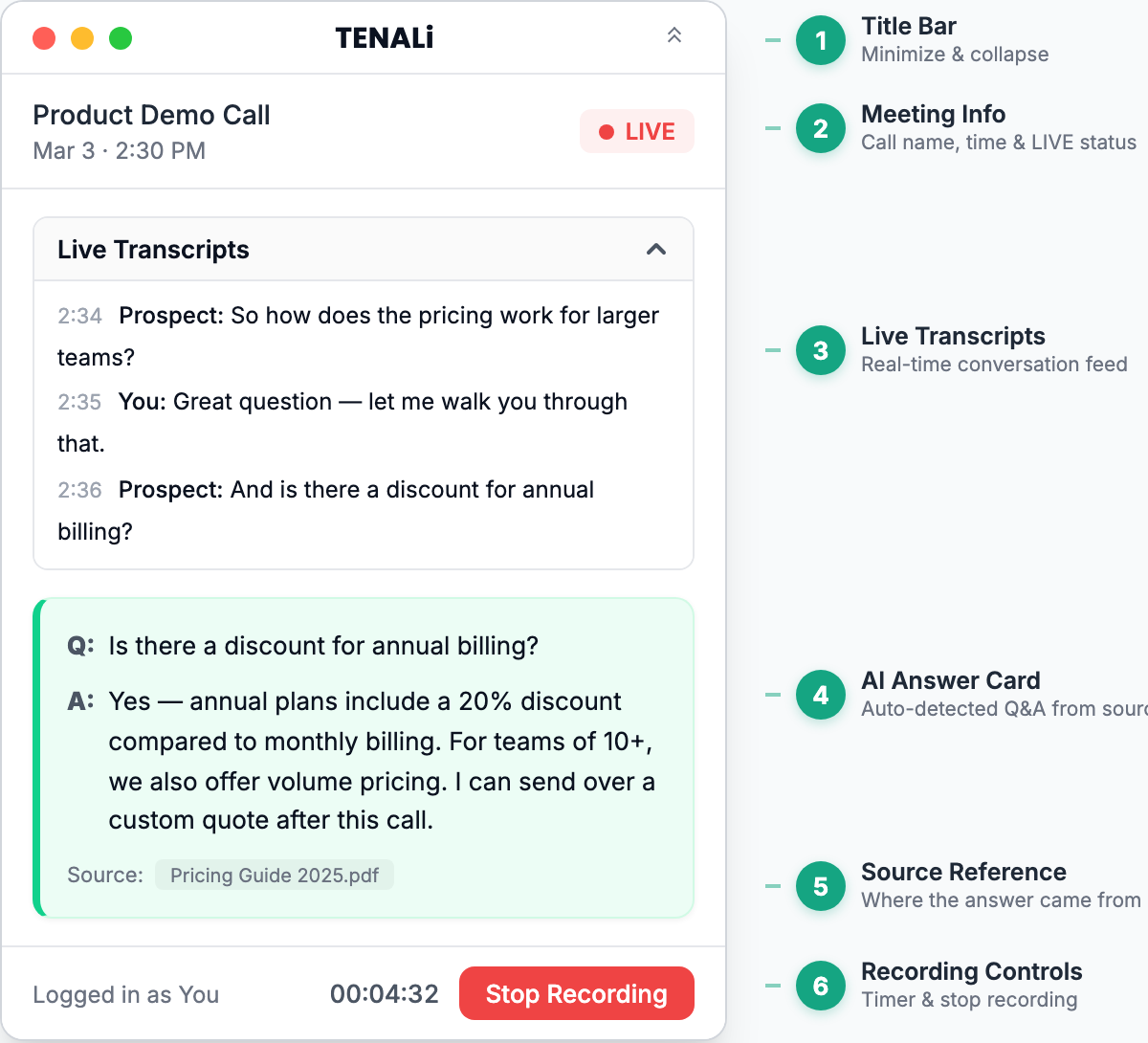
Learn each part of the Tenali desktop overlay and how to use it during live calls.
The overlay is designed to give you quick answers without getting in the way of your call. When Tenali detects your call and recording starts, the overlay docks to the side of your screen and resizes supported meeting windows so the two sit side by side. Keep it visible — it works best when you can glance at it naturally.
Overlay Areas
- Title Bar — Window controls to minimize or collapse the overlay, plus a chevron toggle that switches the docked panel between the left and right edges of your screen.
- Meeting Info — Shows the call name, date, time, and a LIVE indicator so you always know Tenali is actively listening.
- Live Transcripts — A real-time feed of the conversation. Every word is captured as it's spoken so you can follow along or catch something you missed.
- AI Answer Card — When Tenali detects a question on the call, it automatically pulls the best answer from your connected sources and displays it here.
- Source Reference — Shows exactly which document the answer came from, so you can trust it and dig deeper if needed.
- Recording Controls — The elapsed timer and a stop button to end the recording when the call wraps up.
Tips for Using the Overlay
- Keep the overlay in your peripheral view while presenting — glance at it when a question comes up
- The overlay docks to the right edge by default. Use the chevron in the title bar to move it to the left edge (your choice is remembered), or drag it away from the edge to undock and restore your meeting window to its original size
- You don't need to do anything when a question is asked — Tenali detects it and surfaces the answer automatically
- Collapse the overlay when you need more screen space, and expand it when the conversation picks up
- After the call, your full transcript and summary will be available in the web app
Continue to Overlay Interface for deeper details.
Was this page helpful?