
Overlay Interface
Detailed guide to transcript, answer, timing, and control behavior in the desktop overlay.
The overlay is the core desktop surface for live assistance.
Docked side panel
When your call is detected and recording starts, the overlay docks flush to a screen edge — the right side by default — and gently pushes and resizes your meeting window to fill the rest of the screen. Instead of covering your call, the overlay sits beside it, so you keep full view of faces, screen shares, and chat while answers appear alongside. This works the same way on both macOS and Windows.
- Multi-monitor aware — the panel docks on the same monitor your meeting window is on, so it never jumps to another display.
- Switch sides — use the dock-side toggle (the chevron in the panel's title bar) to move the panel between the left and right edges. Your choice is remembered for next time.
- Undock anytime — drag the panel away from the edge to float it freely. Undocking restores your meeting window to its original size.
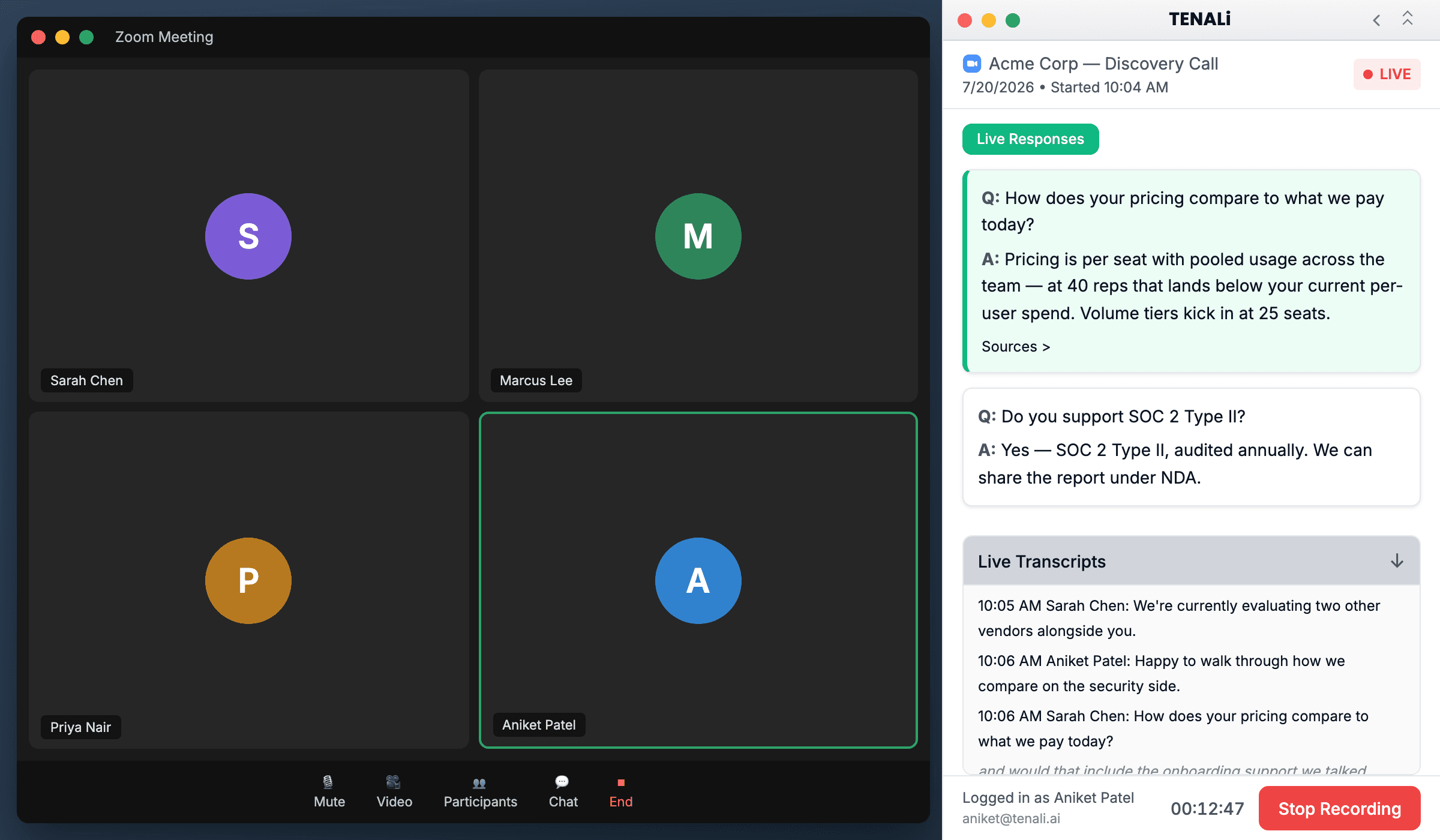
Docked side panel beside a live call
The Tenali overlay docked flush to the right edge of the screen, with the meeting window resized to fill the remaining space to its left — showing the overlay sitting beside the call rather than on top of it.
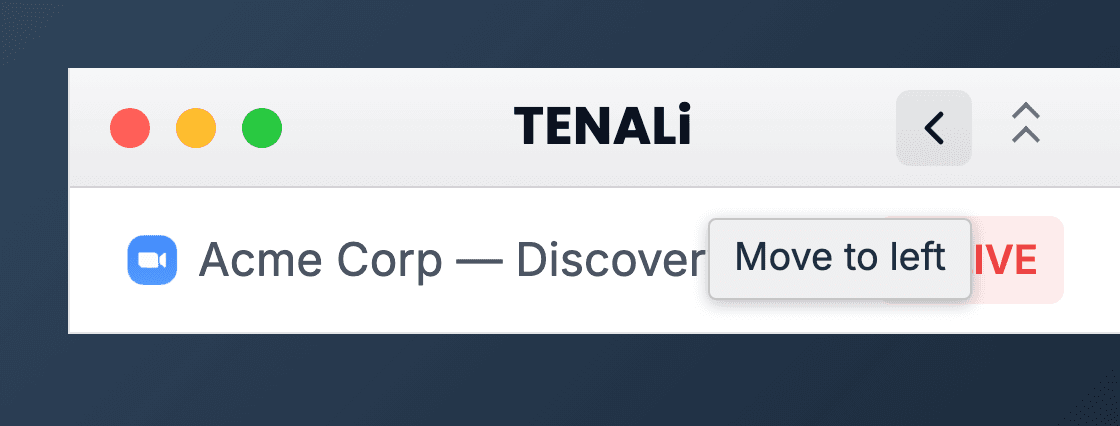
Left/right dock-side toggle
Close-up of the overlay's title bar highlighting the chevron dock-side toggle used to move the docked panel between the left and right screen edges.
Header Region
- Meeting title with inline edit behavior
- Platform badge (Zoom, Meet, Teams, and others)
- Connection state indicators (
standby,live,reconnecting) - Meeting timer showing elapsed recording time
Transcript Region
- Interim transcript appears first, then committed transcript
- Transcript ordering is chronological
- Stream is optimized for call pace, not polished punctuation
Answer Region
The answer panel has three states depending on what Tenali knows at that moment:
- Listening — when no questions have been detected yet, you'll see "Tenali is listening..." with a hint that answers will appear here. This is the default state when you first join a call.
- Answer found — Tenali matched the question to your knowledge and generated an answer. The card shows the question and answer as a
Q:/A:pair, and you can expand the Sources section to see exactly where the answer came from. - No knowledge connected yet — if your workspace has no sources and no answer library at all, Tenali shows a card prompting you to add sources instead of an answer. You'll only see this on a workspace that hasn't been set up.
- Source context can be expanded on each card for verification
- Answers are optimized for direct call delivery, then can be refined post-call
Collapse and Focus Behavior
- Overlay supports compact mode for smaller screens
- Collapse state persists between sessions
- Update banners can appear in collapsed state when safe to install
Was this page helpful?