
Works on Any Call
Zoom, Google Meet, Teams, Webex, any dialer, even a phone call — Tenali assists on every conversation. It starts automatically on the big platforms, or with one click everywhere else.
Tenali isn't tied to one app or a calendar invite. If you can hear the other person, Tenali can help you — on any platform, scheduled or not. This is the part that trips people up at first, so here's the whole thing in one page.
The simple rule
There are only two ways Tenali starts — and you'll never really have to think about which one:
- On Zoom, Google Meet, Microsoft Teams, Webex, or Slack → Tenali recognizes the call and the overlay appears on its own. Just accept and keep talking.
- On anything else → a dialer like Outreach, Aircall, or Five9, a plain phone call, even an in-person chat — click Start Recording once. That's it.
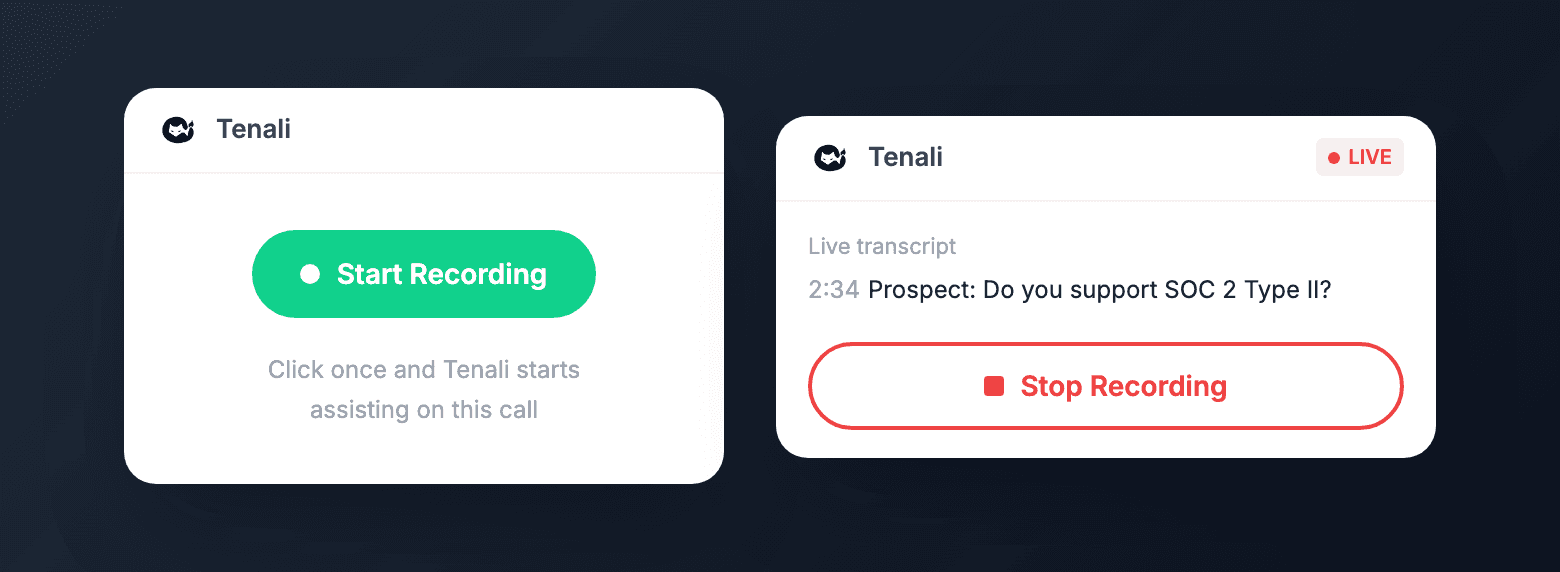
Start and stop recording
On unsupported apps, start Tenali yourself with one click — then click Stop Recording when the call ends.
What Tenali does once it's on
The moment a customer asks something, Tenali detects the question and surfaces a source-backed answer right in the overlay — no typing, no searching, no switching tabs.
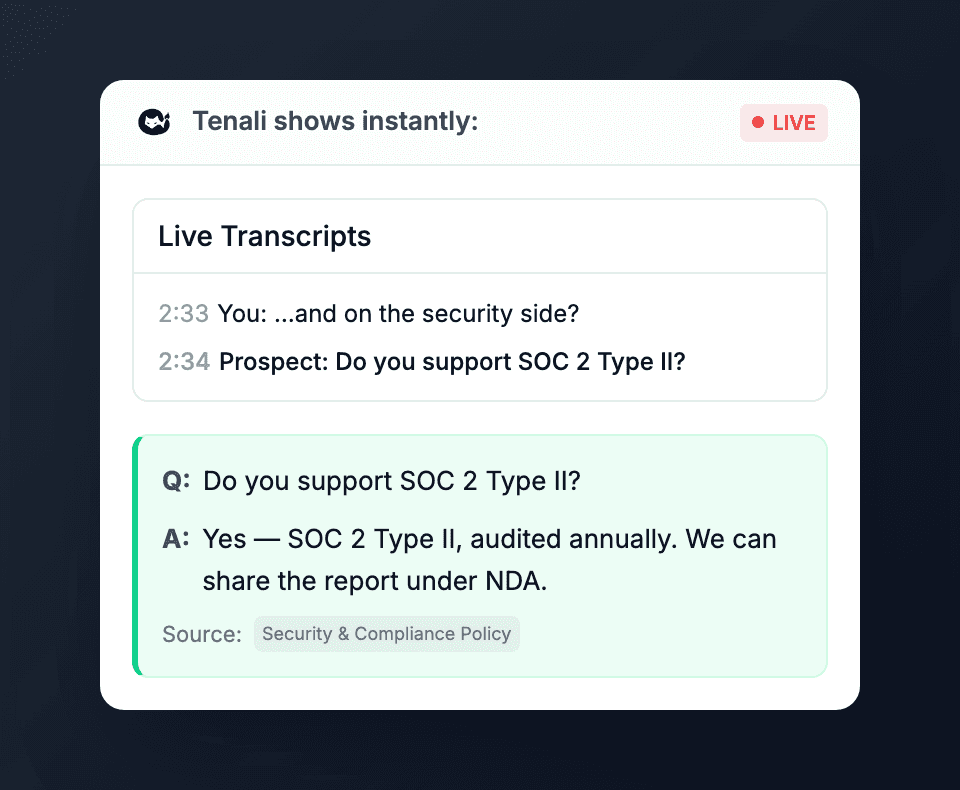
Live answers in the overlay
Tenali shows the question it heard and the approved answer, with the source it came from — live, while you keep talking.
Works with literally anything
This is what most tools can't do. Because Tenali listens to the audio on your own machine, it works on conversations a meeting-bot could never join:
- Sales dialers & contact centers — Outreach, Salesloft, Aircall, RingCentral, Dialpad, Five9, Nooks, and more
- Messaging & other meeting apps — WhatsApp, FaceTime, Discord, Skype, GoToMeeting
- Plain phone calls and in-person meetings
- Any app that plays audio through your computer
One click, then call all day
If you run back-to-back outbound calls, this is the workflow: hit Start Recording once and keep dialing. Tenali keeps assisting across every call in the session — no per-call setup, no re-arming between dials.
Automatic vs. one-click — the details
| Zoom / Google Meet / Teams / Webex / Slack | Everything else | |
|---|---|---|
| How it starts | Automatic — the overlay pops up | One click — Start Recording |
| Calendar invite needed | No | No |
| Live transcript & answers | Yes | Yes |
| What's captured | Audio + screen context — audio only on Webex and Slack huddles | Audio |
What to expect on a universal-capture call
Universal capture is about how the audio is captured, not how the recording starts. Most universal-capture calls are the one-click kind — but Webex starts automatically and still runs through universal capture. Either way, such a call runs slightly differently from a fully supported Zoom/Meet/Teams/Slack call:
- Audio only — the post-call summary shows "Audio Only — No Video Available"; there's no screen or video recording.
- Generic title — the meeting may show as the app name (for example, "Aircall") instead of a specific title.
- Same live help — real-time transcription and answers work exactly the same as on a supported platform.
After the call, it lands in your library at app.tenali.ai like any other meeting — with a summary, transcript, and the same review and sharing options. For the full per-mode breakdown (including the universal-capture time limit), see Recording Modes.
Next Guides
Was this page helpful?