
FAQ Browser
See the questions customers actually ask across your calls — and lock in the answer your team should give.
The same questions come up call after call. The FAQ Browser surfaces those recurring customer questions in one place so you can answer them once and answer them well.
Open it at app.tenali.ai/faqs. There's no sidebar entry for it yet, so bookmark the URL. (Admins looking for question analytics across the whole team want Questions in the admin section instead — see Question Intelligence.) At the top you'll see the explainer: "Your frequently asked questions from your customers. Ask Tenali to get the answers or write in your own answers."
What Appears Here
Each card is a question your customers keep raising across your meetings. Tenali groups the recurring ones so the list reflects what's actually being asked on calls — not a manual list you have to maintain.
For every question you can do one of three things:
- "Ask Tenali!" — let Tenali draft an answer from your meetings and connected sources. If there isn't enough context yet, you'll see a prompt to add your own instead.
- "Write your own answer" — type the exact response your team should use, with a rich-text editor for formatting.
- Edit an existing answer — click the pencil icon next to any answered question to refine the wording. Saving shows an "Answer updated successfully" confirmation.
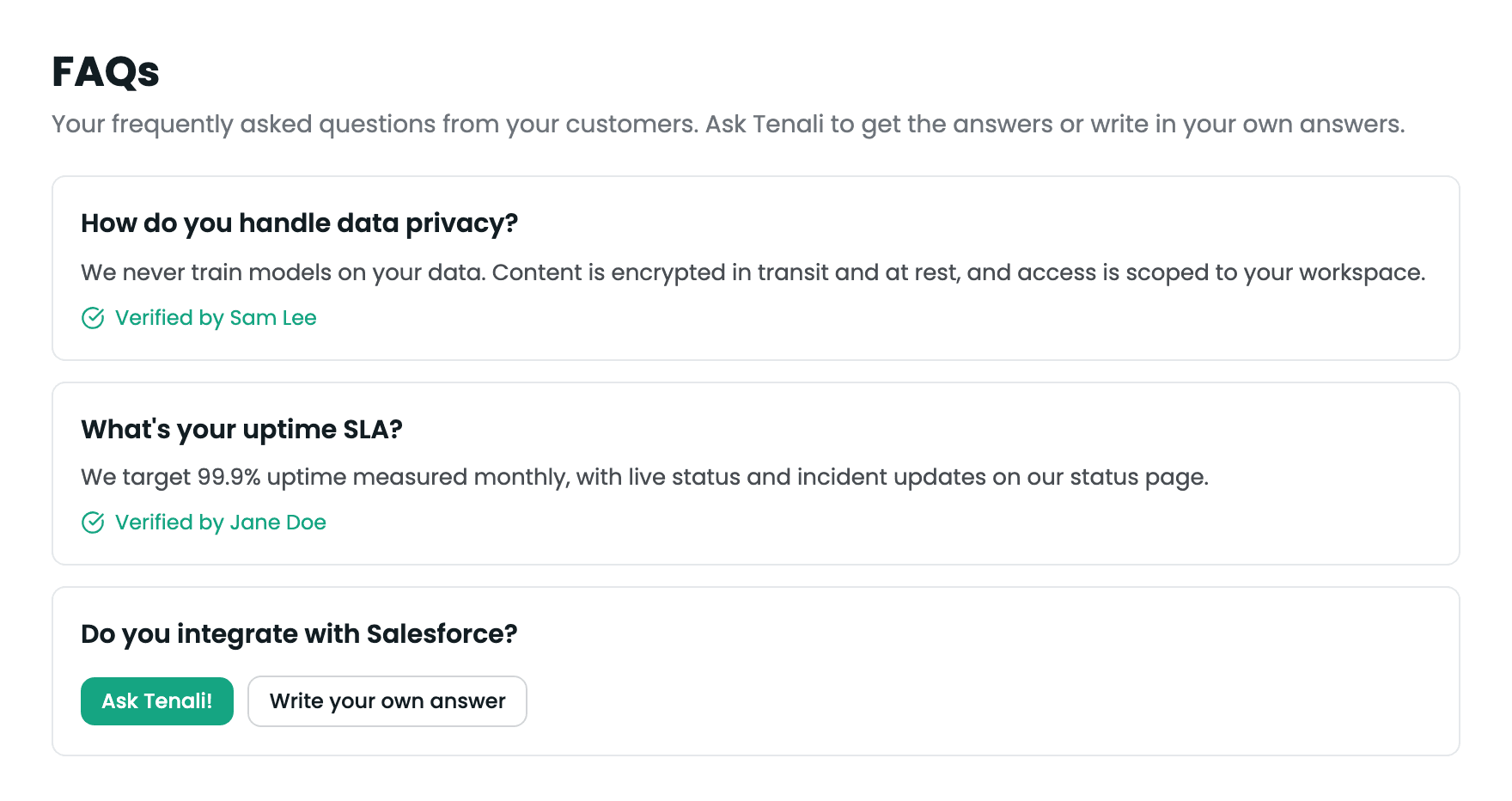
FAQ Browser
A list of recurring customer questions, each with an answer and a 'Verified by' indicator.
How Answers Get Verified
Answers aren't static. Each answer is "Verified by" the most recent teammate who confirmed it was helpful during a live call — so the answer on the card reflects the version your team is actually getting value from. A green check and the verifier's name appear beneath each answered question.
This keeps the FAQ Browser honest: the answers you see are the ones that held up in real conversations, not first drafts that nobody validated.
How the List Gets Populated
The FAQ Browser is built from your meeting history. If the list is empty, you'll see "No FAQs found" with a "Generate FAQs" button.
- 1
Connect Fireflies (first time only)
If you haven't connected Fireflies yet, you'll be prompted to add your Fireflies API key so Tenali can pull in your past transcripts. See Connect Fireflies for where to find the key.
- 2
Generate FAQs from your meetings
Click "Generate FAQs" and select the meetings to analyze. Tenali reads through them and pulls out the questions customers asked most often.
- 3
Answer and refine
Work down the list — let Tenali draft answers, write your own, and tighten the wording until each one is something you'd be happy to say on a live call.
How It Relates to Question Intelligence
The FAQ Browser is your personal view of recurring questions. For team-wide standardization, admins use Question Intelligence, where a curated answer can be promoted to "Golden" — the standard answer Tenali uses verbatim for the whole team in future meetings.
Think of it this way: the FAQ Browser is where you spot the questions and shape good answers; Question Intelligence is where an admin locks the best ones in so every rep gives the same trusted response.
Next Guides
Question Intelligence (Admin)
Promote the best answers to Golden so the whole team gives the same response.
Chat: Ask Tenali Anything
Query your knowledge base for ad-hoc questions and prep.
Meeting Summaries
Read recaps, transcripts, and action items from past calls.
Connect Fireflies
Get your API key and connect Fireflies to generate FAQs.
Was this page helpful?